Grow your Mailchimp audience with smart popups

Sync new subscribers from your PrestaShop store directly to your Mailchimp Audience and marketing campaigns

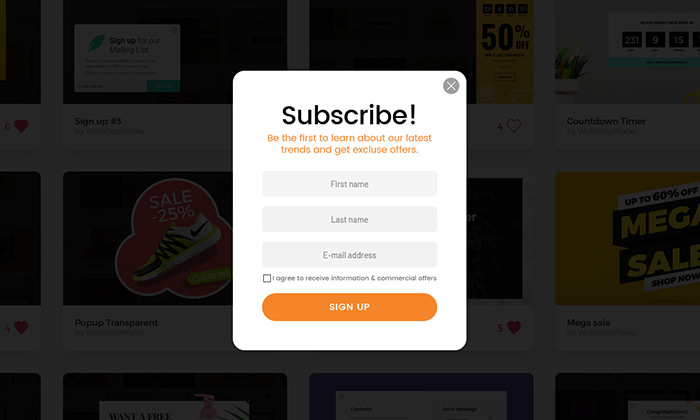
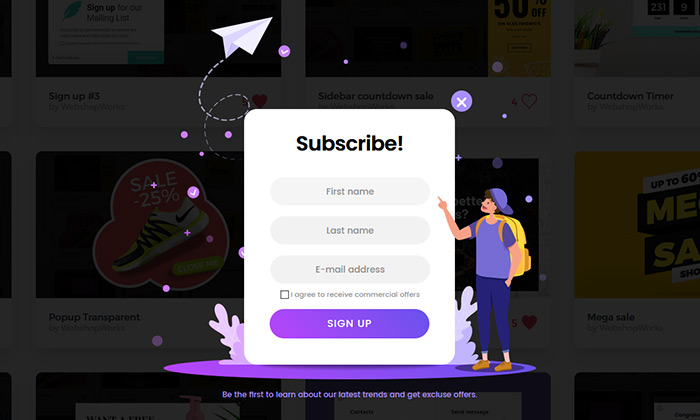
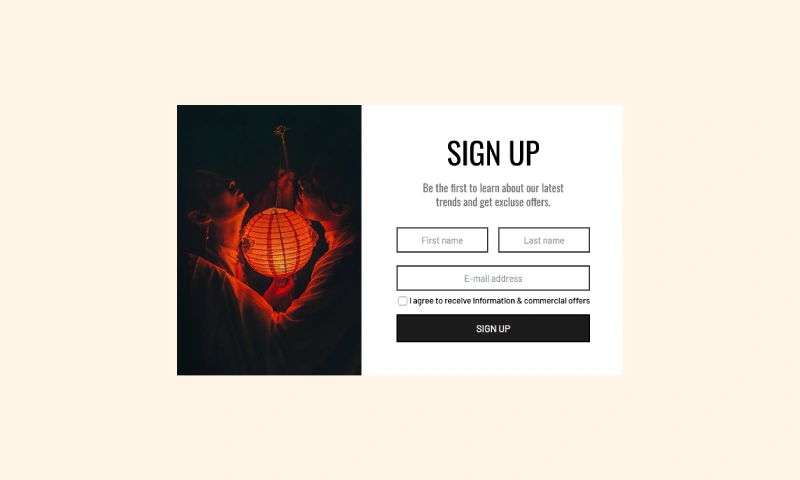
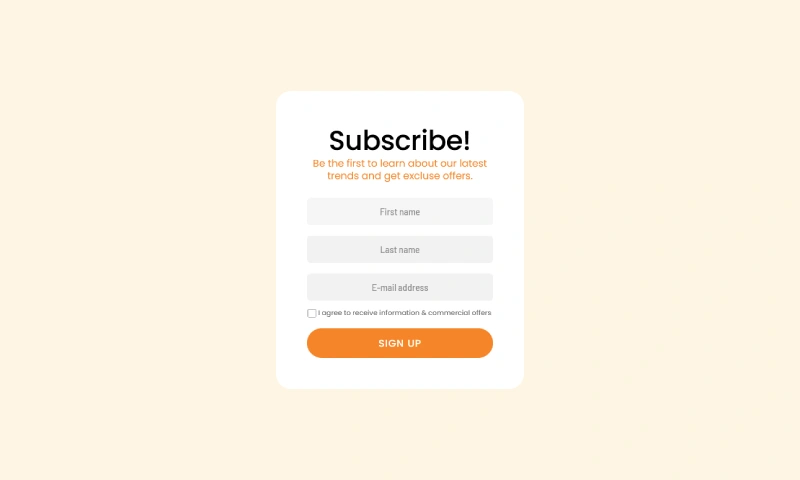
An example of a clean, user-friendly Mailchimp newsletter popup, designed to sync subscribers by collecting their first name, last name, and email.
Click to Try

Did You Know?

Automated welcome series are one of the most effective email campaigns, with an average open rate of over 80%. Syncing subscribers to Mailchimp allows you to instantly trigger these high-engagement journeys, turning new signups into loyal customers from day one.

Boost Your Store with Smart Popups

Unlock ready-made strategies and implement high-converting popups instantly.

When to use a Mailchimp Newsletter Popup?

This campaign connects the powerful conversion tools of Creative Popup with the world-class email marketing of Mailchimp. By syncing your subscribers directly, you can leverage Mailchimp’s powerful platform to nurture leads and drive sales.

This is the right choice when you want to:

  • Automatically add new subscribers to your main Mailchimp Audience.
  • Leverage Mailchimp's tags and segments for hyper-targeted emails.
  • Consolidate your email marketing in one of the world's most popular platforms.

How to set up the campaign?

The process is simple. Our module saves new subscribers as users to PrestaShop’s default Customers list, and the official Mailchimp module syncs your customers to your Mailchimp Audience.

Step 0: Before You Begin

This integration requires the free, official Mailchimp module from the PrestaShop Addons Marketplace. Make sure you have it installed and connected to your Mailchimp account before setting up your popup.

Step 1: Create your popup

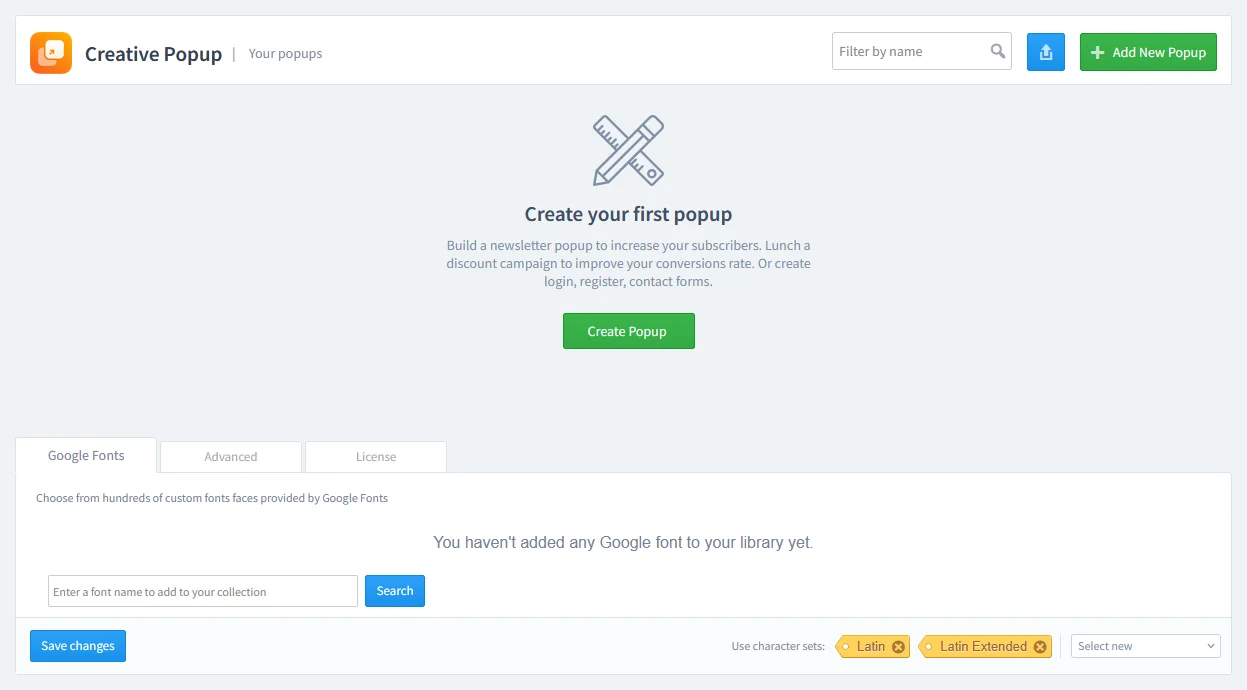
Go to Creative Popup > Popups and create a new popup.

The Creative Popup dashboard in PrestaShop, showing the starting screen to create a new popup campaign.

To make syncing with Mailchimp, we’ve created special templates just for this purpose. In our template library, look for designs specifically made for Mailchimp integration and import one.

Step 2: Design your popup

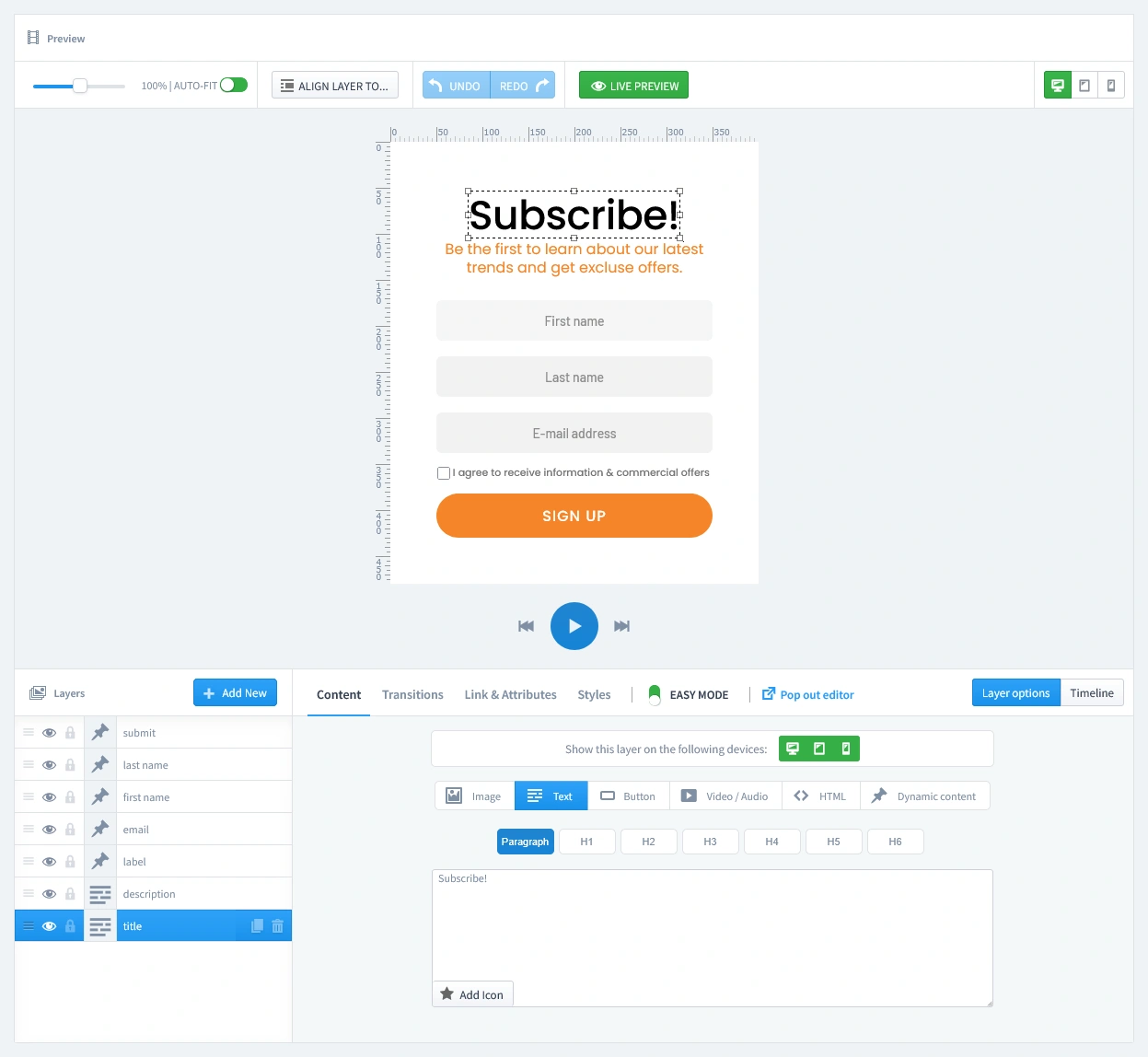
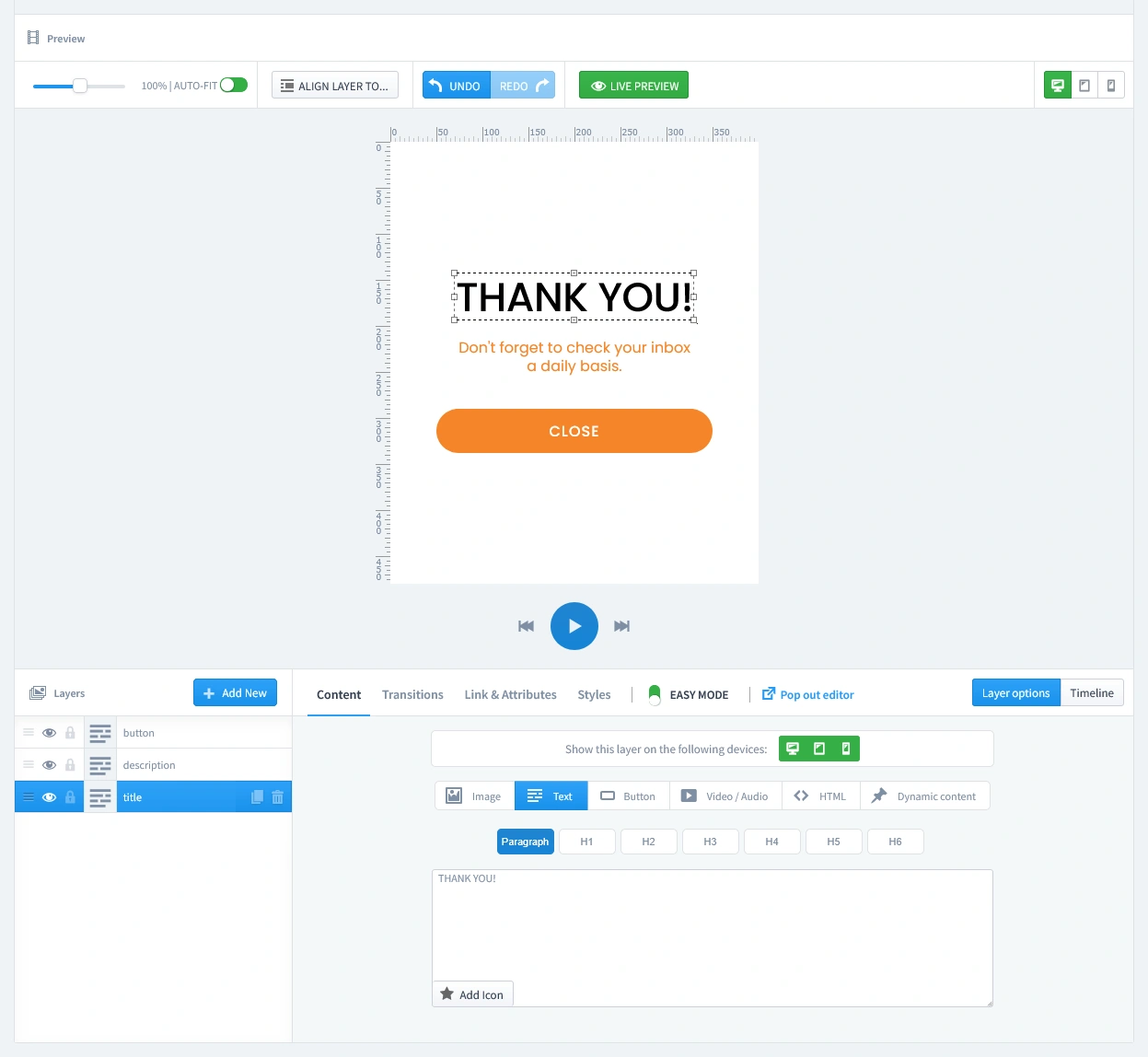
This campaign uses two distinct pages that you can customize in the editor: the form itself and the "thank you" page that follows.

  • The Subscription Form (First Tab): This is the main view your visitor sees. For the Mailchimp sync to work, it is mandatory that this form includes three input fields: First Name, Last Name, and Email. This is because our module creates a new customer account in your PrestaShop store, which is then automatically synced to your Mailchimp Audience. An email-only form will not work for this specific integration. Once you confirm the fields are correct, you can easily customize the colors, font, and image to fit your store's design.
  • The Thank You Page (Second Tab): This page appears automatically after a visitor successfully subscribes. Use this space to thank them for joining and confirm their subscription. 
Icon of the Spam Protection - Invisible reCaptcha module for blocking spam bots
Pro-Tip: Keep Your Email List Clean from Spam

Don't let spam bots fill your database with fake entries. Protect your form by adding a layer of security with our reCAPTCHA Module. It integrates with PrestaShop to block bots without annoying real customers.

Step 3: Set Triggers

In this step, we'll set the rules for when your popup appears. Let's begin by clicking on the Triggers tab.

1. Launch Popup

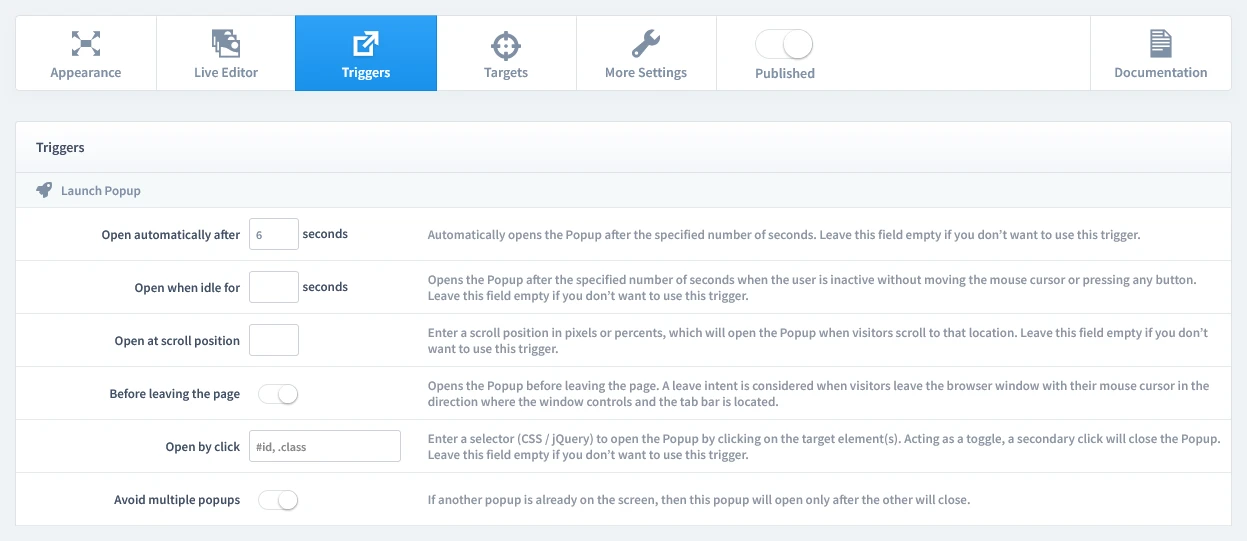
You have several powerful options, but for this campaign, select Open automatically after 6 seconds. This gives visitors a moment to see your page before the offer appears, which feels natural and less intrusive.

The 'Triggers' tab in the popup settings, highlighting the 'Open automatically after 6 seconds' option for launching the popup.
Pro-Tip: Match Your Trigger to the Page

As you get more advanced, you can use different triggers for different pages. For example:

  • On a Category Page, using a Scroll Position trigger (e.g., at 50%) can target highly engaged shoppers.
  • On a Blog Post, triggering after a user reads 70% of the article is extremely effective.

2. Repeat Control

To prevent showing the same popup to a visitor too often, choose Repeat once in a browser session. To set this up, enable "Repeat Popup" and set the "Repeat after" value to 0 days.

Configuring the 'Repeat Control' settings to show the popup once per browser session, with 'Repeat Popup' enabled and 'Repeat after' set to 0 days.

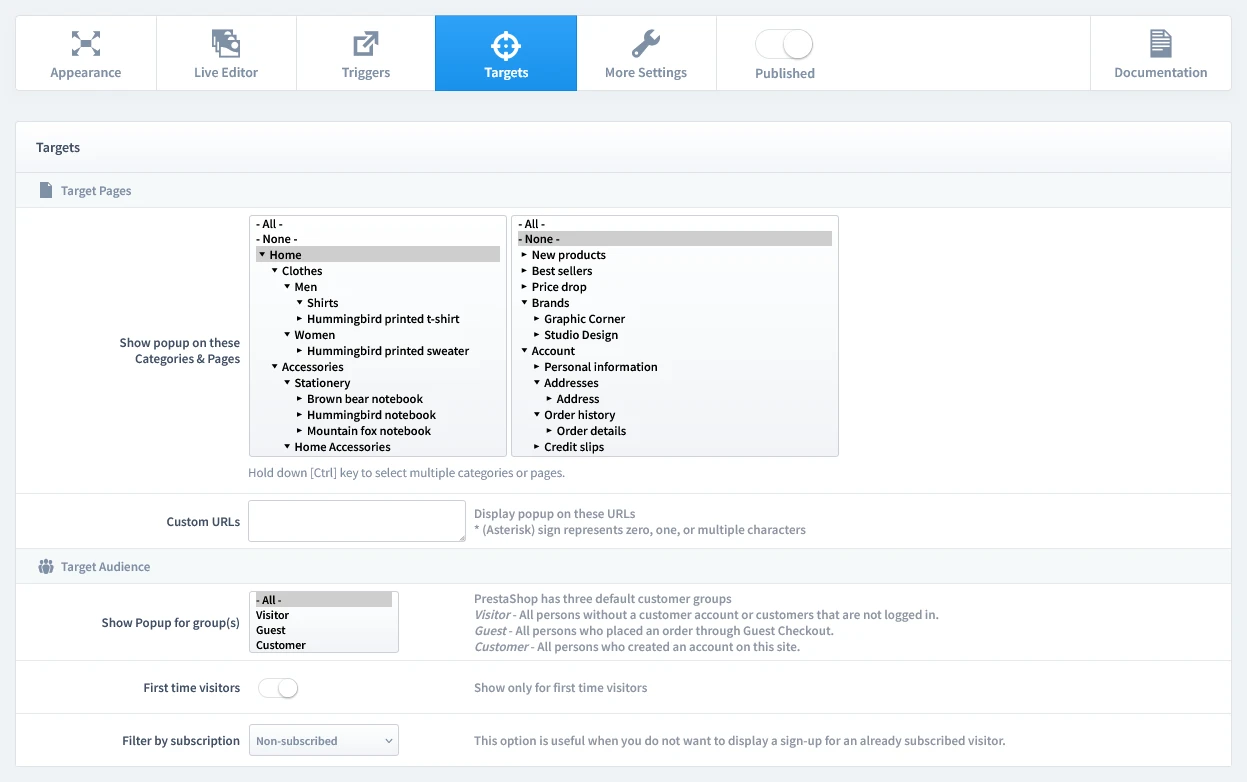
Step 4: Set Targets

Now that we've set when the popup appears, it's time to define who sees it and on which pages. Let's begin by clicking on the Targets tab.

  • Target Pages: For this type of popup, we recommend showing it on your Homepage.
  • Target Audience: This is a crucial step; configure it to hide the popup for subscribed users. This ensures you only show the offer to new visitors and non-subscribers.
Configuring the targets for a PrestaShop newsletter popup: selecting the Homepage and filtering for non-subscribed users.

Step 5: Publish your campaign

Once you're satisfied with your design, triggers, and targets, it's time to go live.

  1. Navigate to the top of the editor and find the "Published" switch.
  2. Click the switch to turn it green.
  3. Make sure to click the Save button in your editor to apply all your changes.
The main settings bar in the Creative Popup editor, with the 'Published' switch toggled on to activate the campaign.

That's it! Your campaign is now live and ready to start boosting conversions on your store.

Don't have the module yet?

Start putting this strategy to work on your PrestaShop store.

Choose a Design and Go Live in Just a Few Clicks

Why start from a blank page? Our template library is packed with professionally designed, conversion-focused layouts ready for your PrestaShop store.

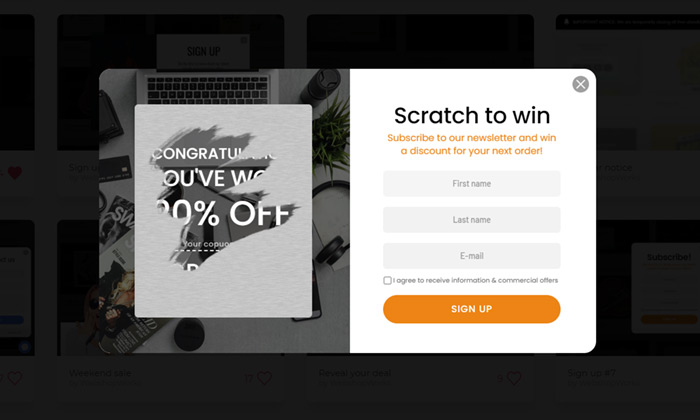
Scratch to win
Scratch to win

by WebshopWorks

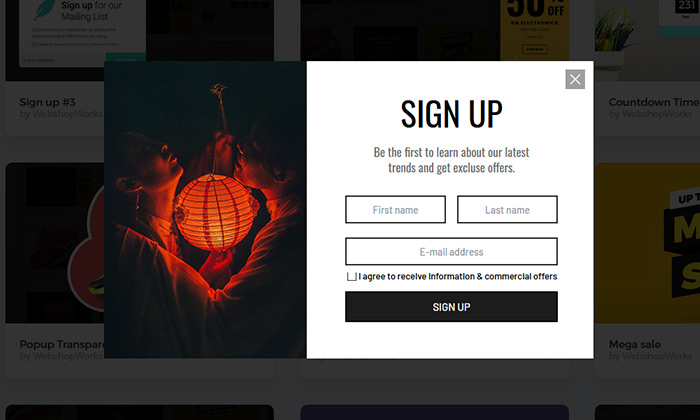
Sign up #6
Sign up #6

by WebshopWorks

Sign up #7
Sign up #7

by WebshopWorks

Sign up #8
Sign up #8

by WebshopWorks

Explore More Ways to Engage Visitors

An example of a clean, user-friendly login popup designed to streamline the customer sign-in process.

Login Popup

Allow your customers to log in from any page without interruption, reducing friction and improving t…

Read more »