


Turn engaged shoppers into buyers with a coupon

Offer a timely discount coupon to visitors showing interest on your shop to overcome purchase hesitation

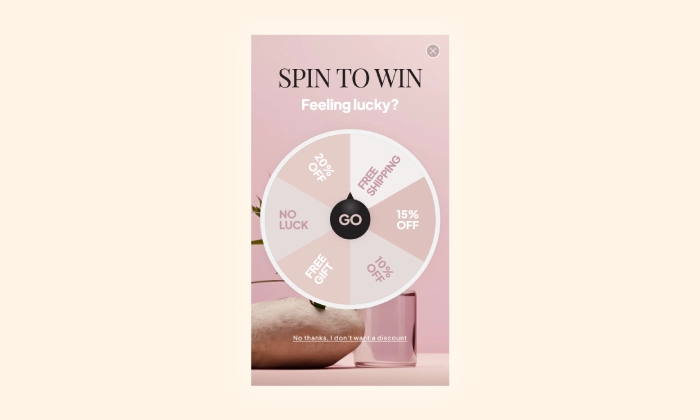
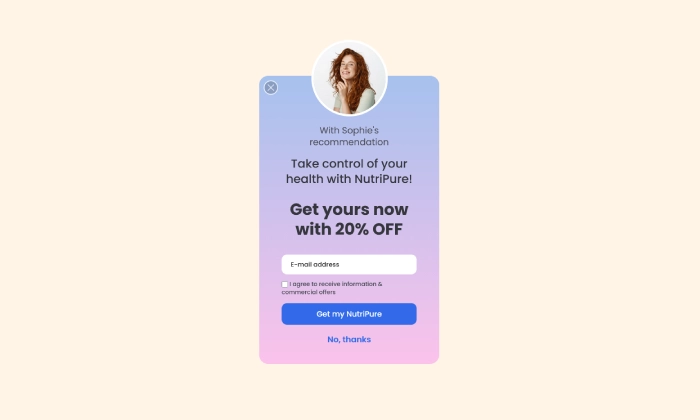
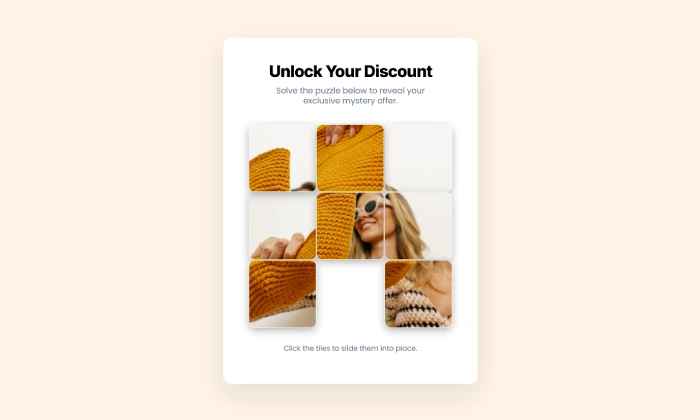
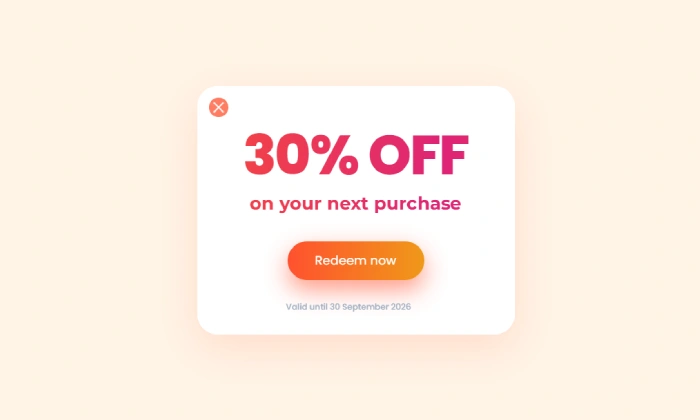
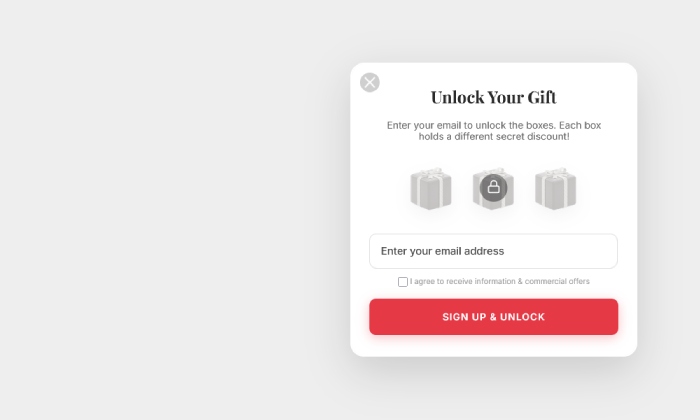
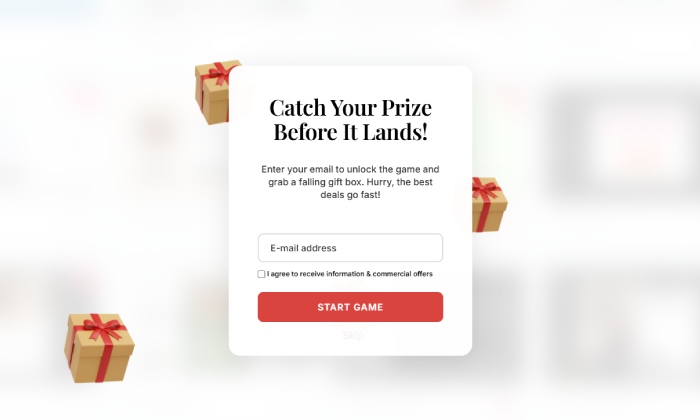
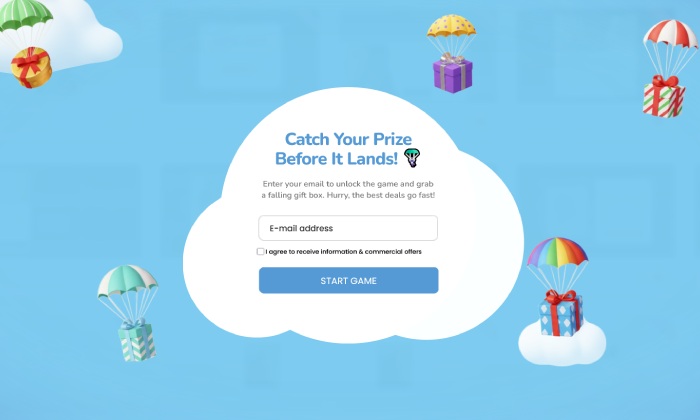
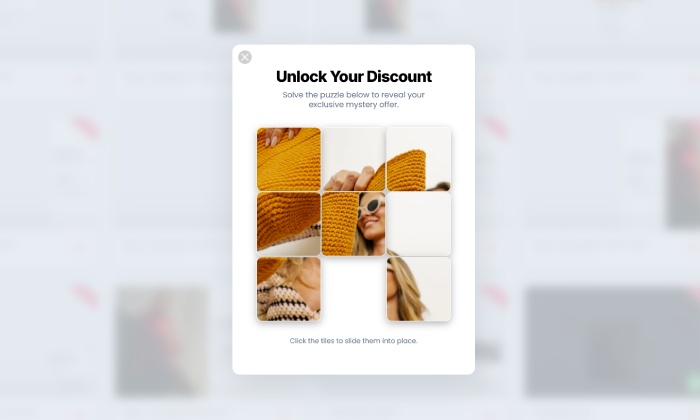
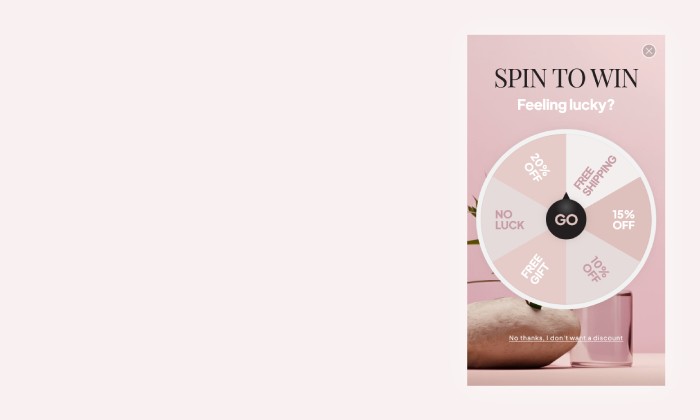
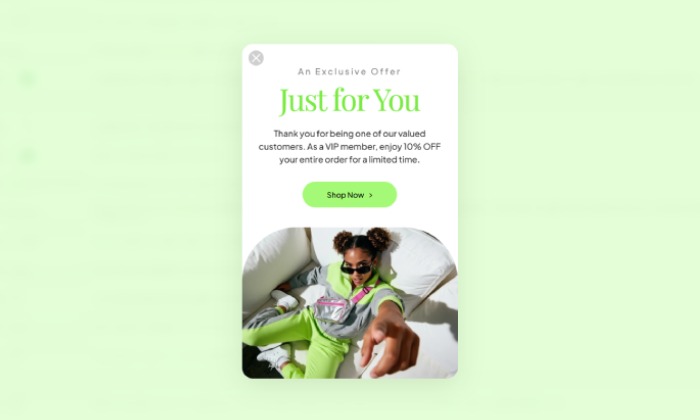
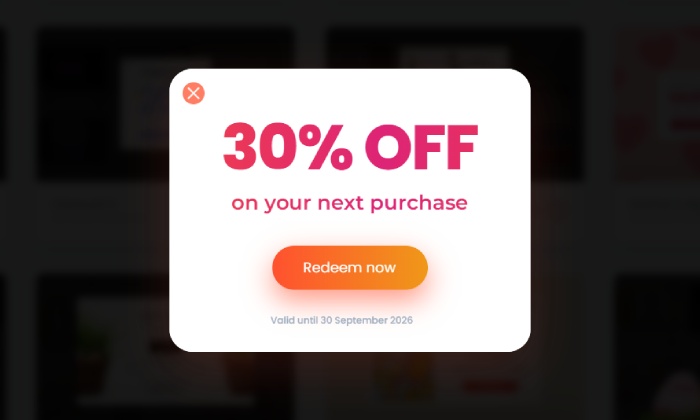
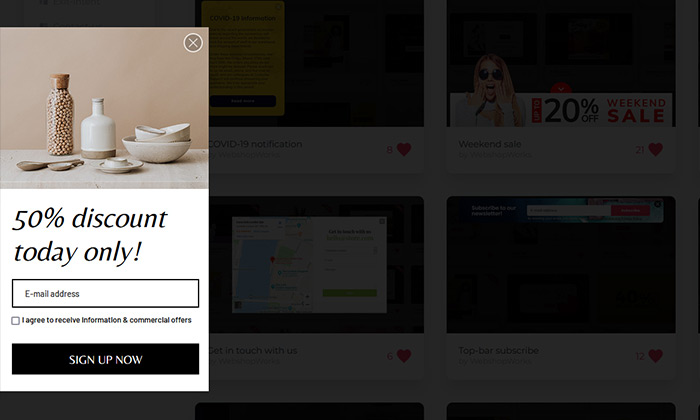
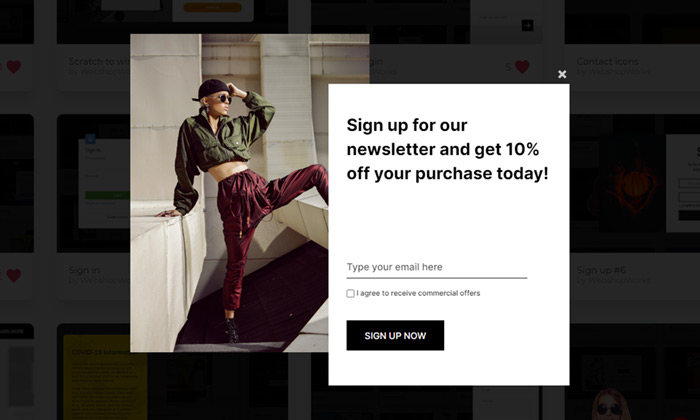
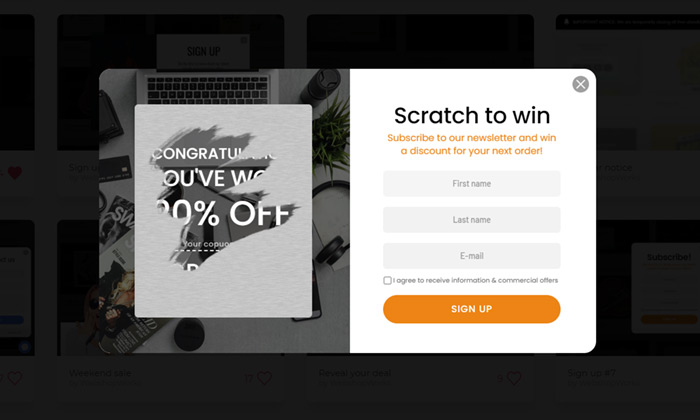
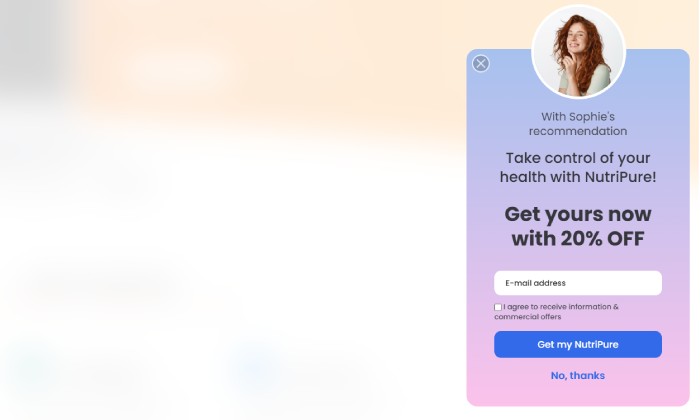
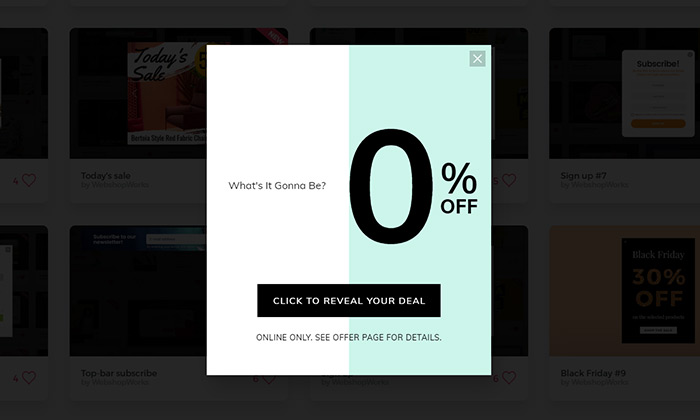
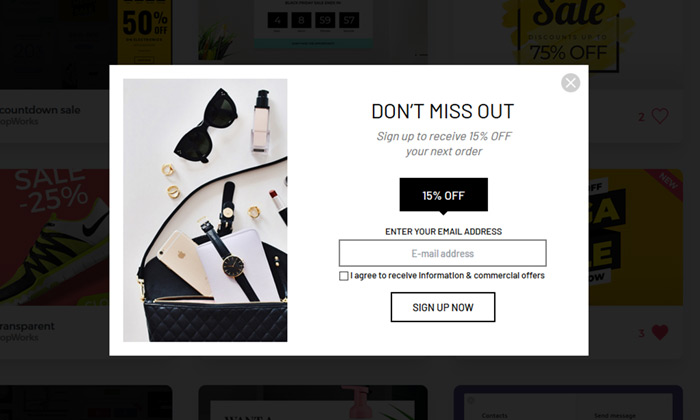
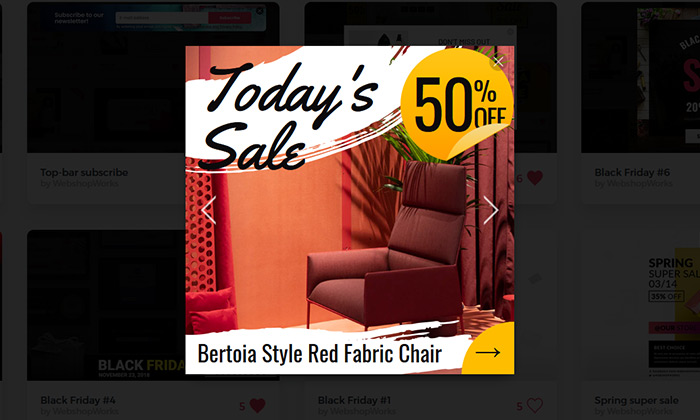
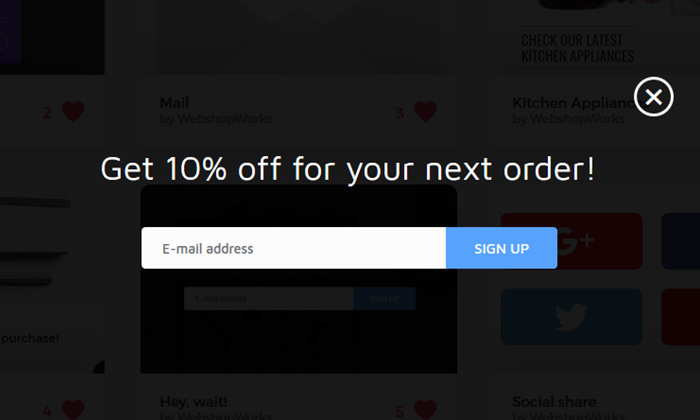
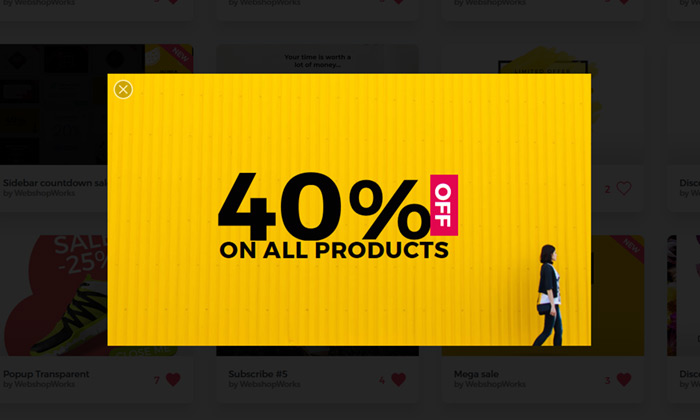
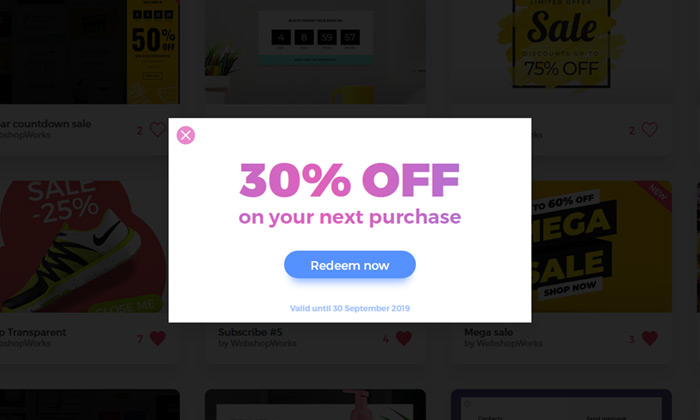
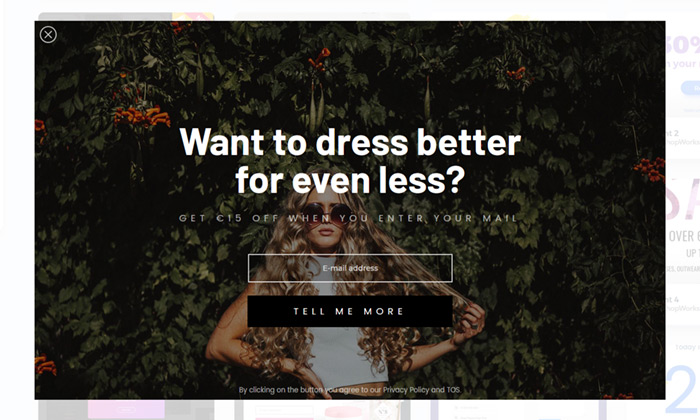
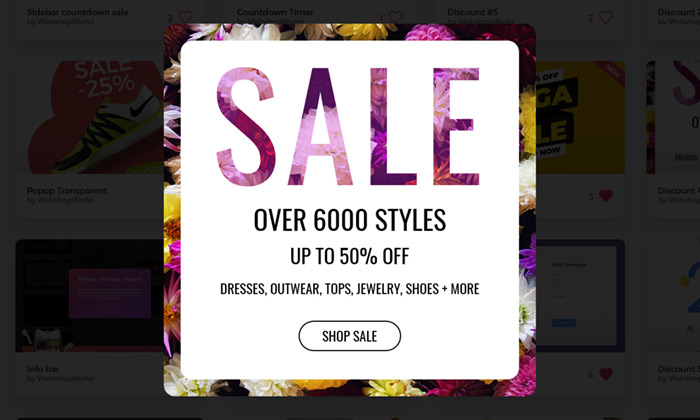
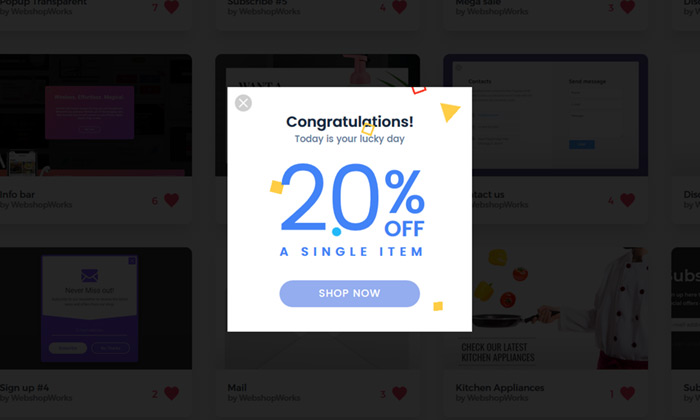
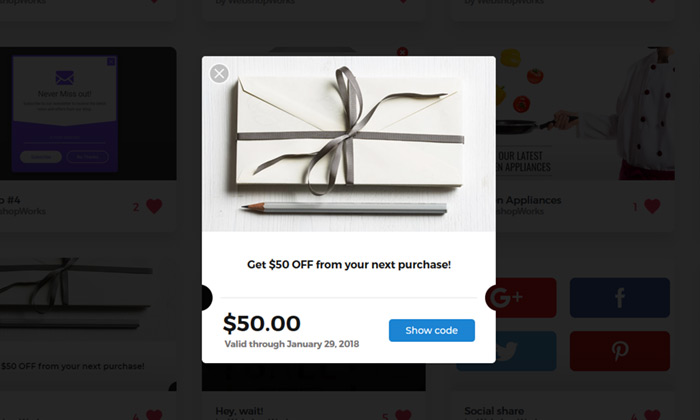
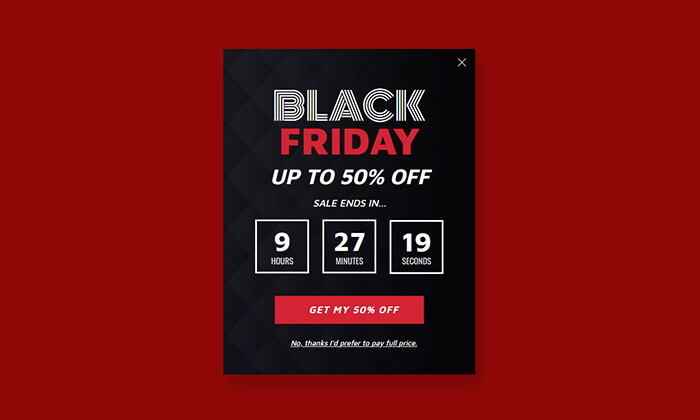
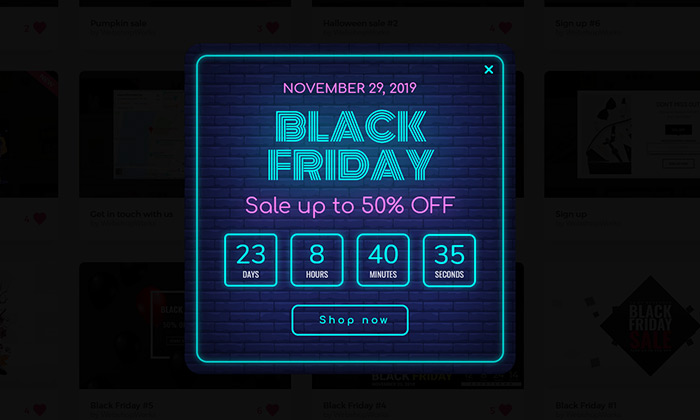
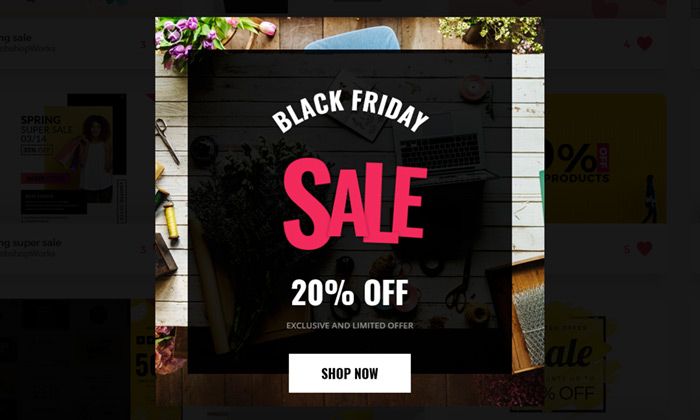
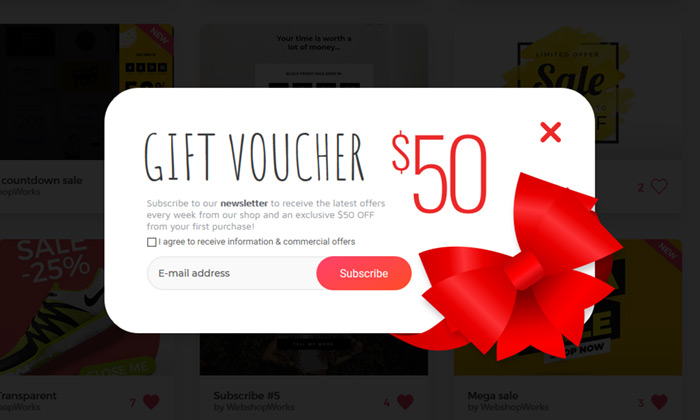
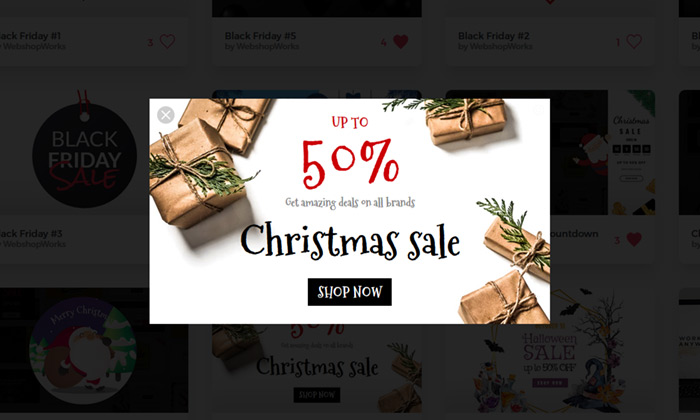
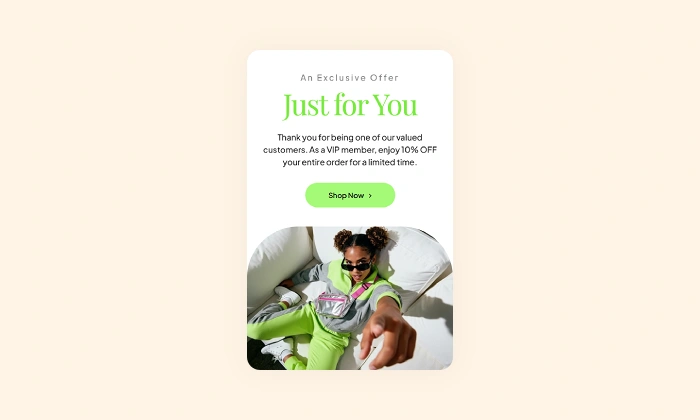
An example of a discount popup used to convert interested visitors with a special coupon offer.
Click to Try

Did You Know?

Over 60% of online shoppers say a compelling discount is the biggest factor in their decision to try a new brand. A smart, well-timed coupon offered while they browse can be the final nudge they need.

Boost Your Store with Smart Popups

Unlock ready-made strategies and implement high-converting popups instantly.

When to use a Discount Coupon Popup?

This is a precision tool for converting shoppers who are on the verge of a decision. Instead of offering a discount to everyone, this strategy targets visitors who are actively spending time on your product pages, indicating clear purchase intent.

By presenting a coupon after they've shown engagement, the offer feels like a relevant, helpful incentive rather than a generic ad. This is the perfect popup to:

  • Overcome purchase friction and hesitation.
  • Increase your first-time customer acquisition rate.
  • Boost your overall store conversion rate without devaluing your brand.

How to set up the campaign?

The key to this strategy is precision. We'll set up a popup that appears only to new, engaged visitors on the pages that matter most.

Step 0: Create your coupon code in PrestaShop

Before designing the popup, you must create the coupon code it will reveal. In PrestaShop, all coupon codes are created using Cart Rules.

  1. Navigate to Catalog > Distounts > Cart Rules in your back office and click Add new cart rule.
  2. Configure the rule:
    • On the Information tab: Give it a name and a Code (e.g., PRODUCT30).
    • On the Conditions tab: Set any restrictions, like a minimum purchase amount.
    • On the Actions tab: Define the offer (e.g., a 30% discount).
  3. Click Save. Your coupon code is now ready.
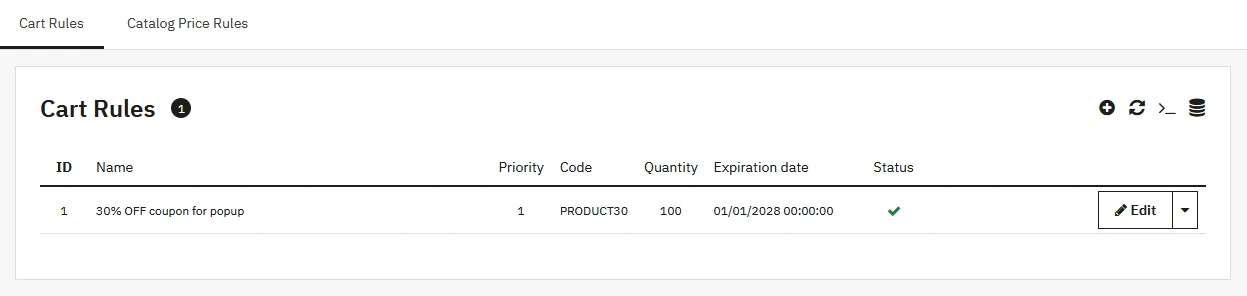
A screenshot of the PrestaShop back office showing the Cart Rules list. The newly created "30% OFF coupon for popup" is listed, showing the code "PRODUCT30" and an active status.

Step 1: Create your popup

Go to Creative Popup > Popups and create a new popup.

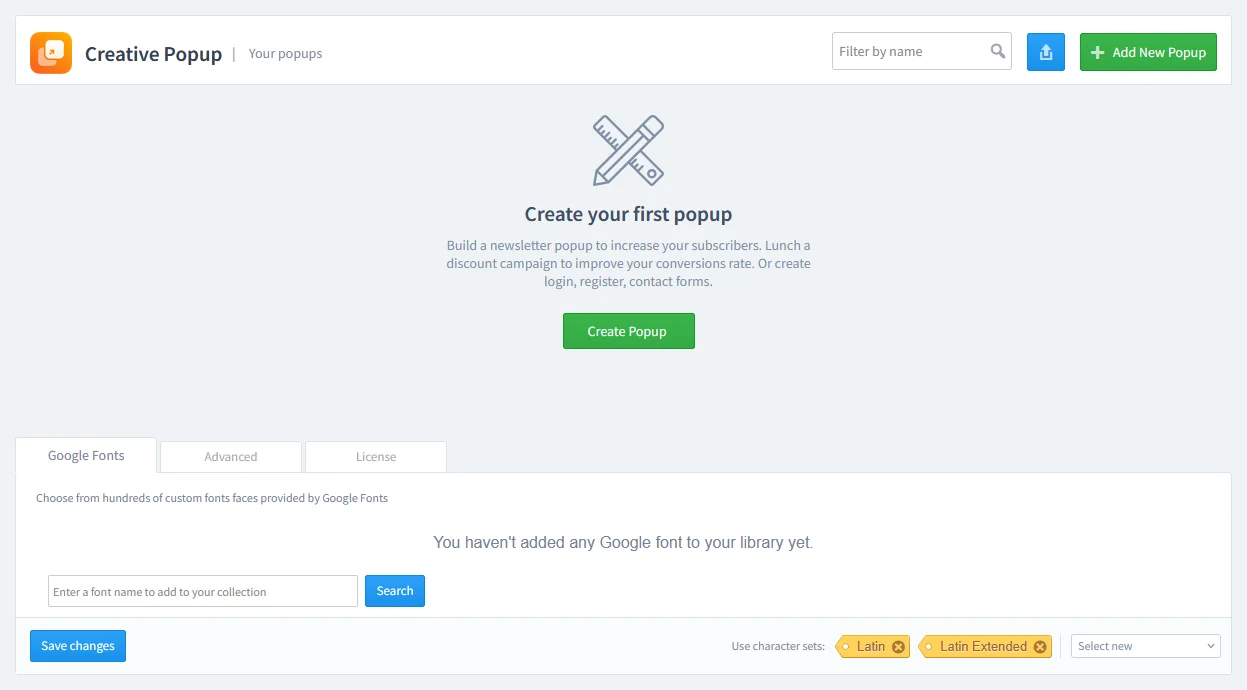
The Creative Popup dashboard in PrestaShop, showing the starting screen to create a new popup campaign.

Select a template designed for coupons. Alternatively, if you want to collect an email address in exchange for the coupon (a strategy we'll cover in the Pro-Tip below), our template library also includes ready-to-use newsletter coupon templates specifically for that purpose.

Step 2: Design your popup

This campaign uses two views: the initial offer and the coupon reveal.

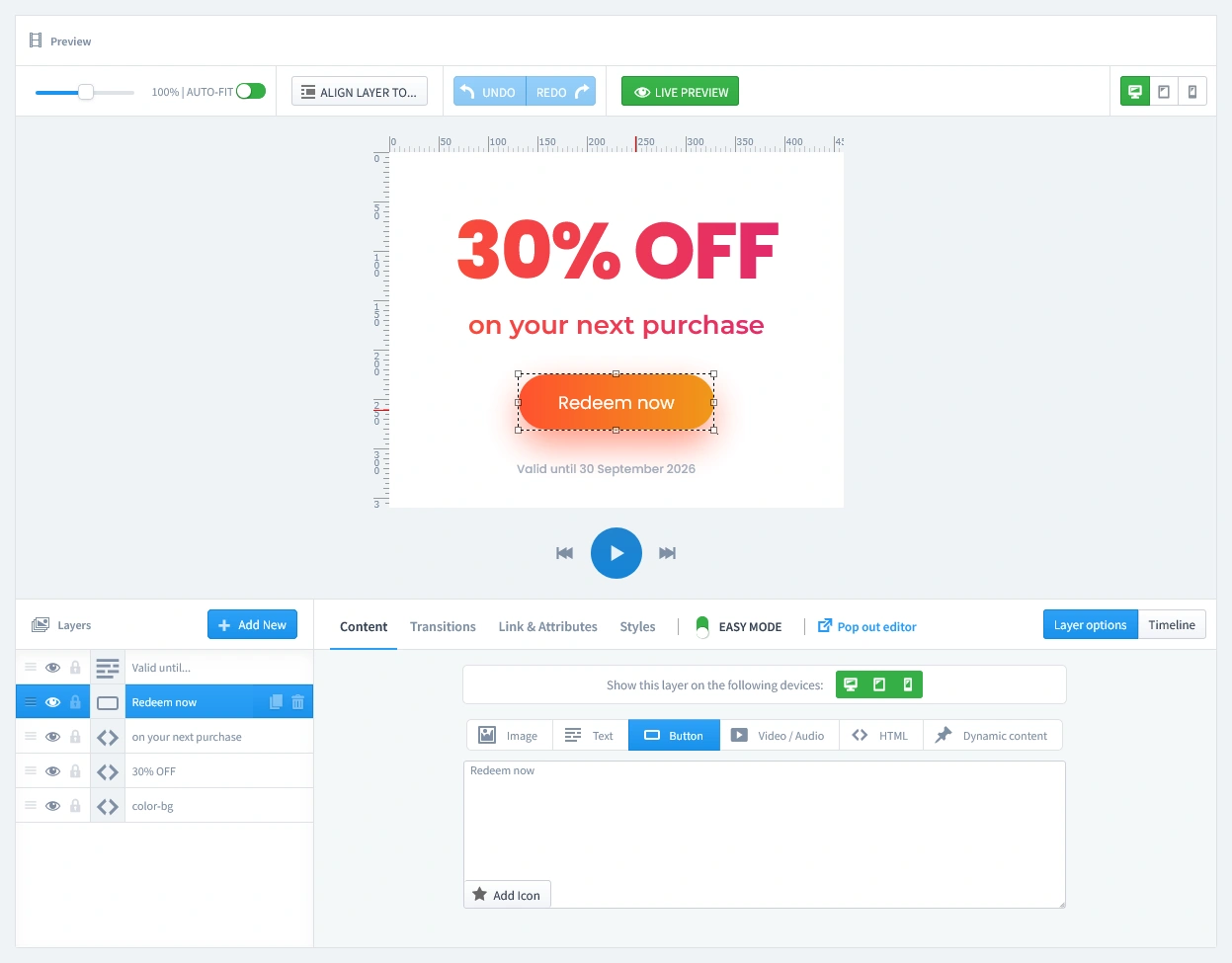
  • The Offer Page (First Tab): This is the main view your visitor sees. Here, you'll design the initial offer with a strong headline like "Get 30% Off!" and a clear call-to-action button like "Redeem Now." You can easily customize the colors, font, and image to fit your store's design.
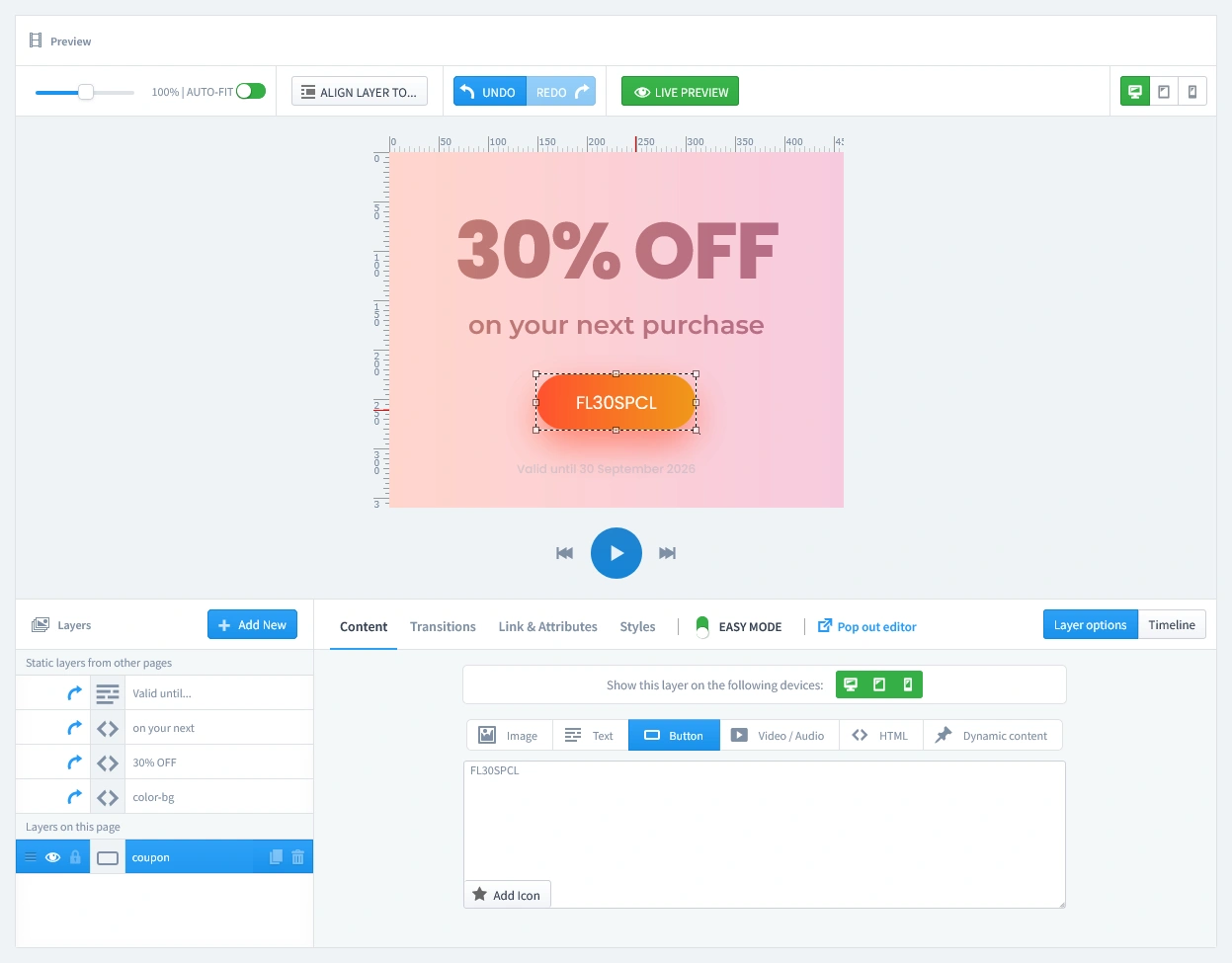
  • The Coupon Reveal Page (Second Tab): This page appears after the user clicks the "Redeem Now" button. Switch to this view in your editor. The crucial step is here: make sure you enter the coupon code you created in Step 0 into the designated "coupon" layer of the popup. This will display the correct code for your customer to use.
Pro-Tip: Turn Coupon Seekers into Subscribers

If your template includes an email field, visitors will automatically be added to your newsletter when they claim their discount. While you can display the code on the second page of the popup, another approach is to have PrestaShop email it directly to them.

  • To set this up, go to your native Newsletter Subscription module in PrestaShop. Enter your coupon code in the "Welcome voucher code" field and ensure both the "Send verification email" and "Send confirmation email" options are enabled.
  • With this workflow, you can change the second page of your popup to a simple confirmation message, like "Thanks! Your code is on its way to your inbox."

Step 3: Set Triggers

In this step, we'll set the rules for when your popup appears. Let's begin by clicking on the Triggers tab.

1. Launch Popup

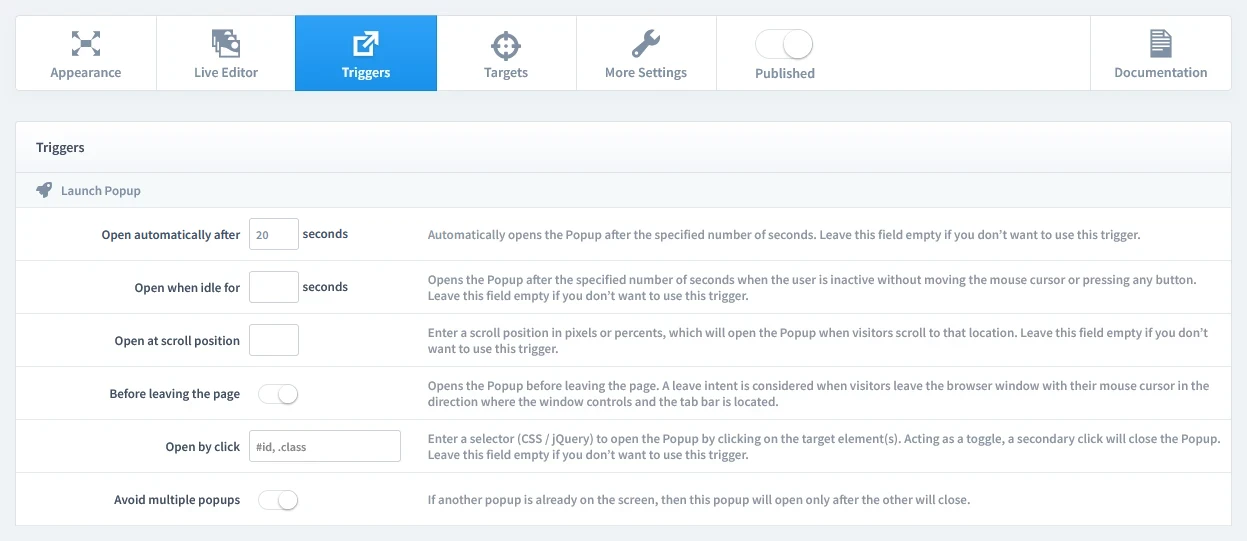
You have several powerful options, but for this campaign, select Open automatically after 20 seconds. This is the key to targeting engaged visitors who are actively considering your products.

The 'Triggers' tab in the popup settings, highlighting the 'Open automatically after 20 seconds' option for launching the popup.

2. Repeat Control

For this type of exclusive offer, it's crucial that a visitor only sees it once. To achieve this, start by enabling the "Prevent reopening" parameter. This setting prevents the popup from appearing again. We will combine this with a rule on the Targets tab to ensure it only appears once for each first-time visitor.

Configuring the 'Repeat Control' settings to prevent the popup from appearing again, with 'Prevent reopening' enabled.

Step 4: Set Targets

Now that we've set when the popup appears, it's time to define who sees it and on which pages. Let's begin by clicking on the Targets tab.

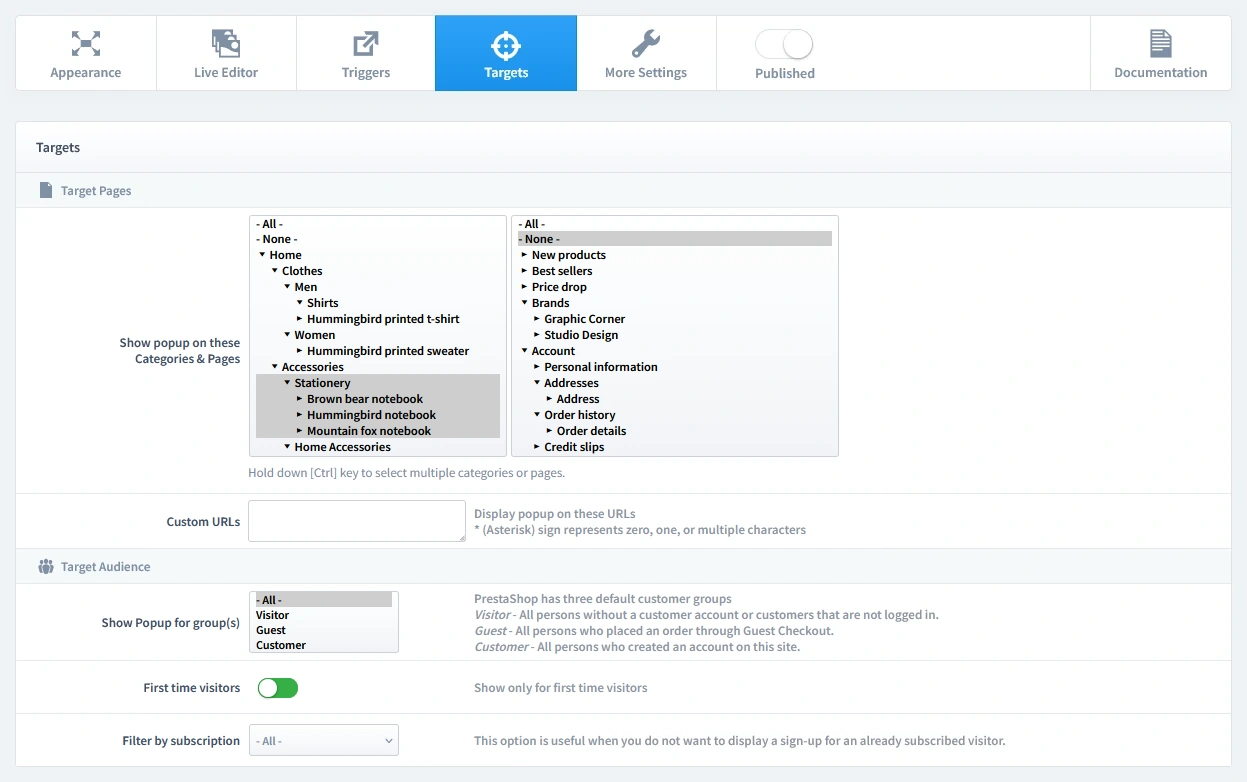
  • Target Pages: For this strategy, select your desired product page(s) and/or category page(s). Do not show this popup on your homepage or during the checkout process.
  • Target Audience: Configure the audience to show this popup to First-time visitors only. This focuses your discount on acquiring new customers, which is the most profitable way to use this strategy.
Configuring the targets for a PrestaShop discount coupon popup: selecting product and category pages and filtering for first time visitors.

Step 5: Publish your campaign

Once you're satisfied with your design, triggers, and targets, it's time to go live.

  1. Navigate to the top of the editor and find the "Published" switch.
  2. Click the switch to turn it green.
  3. Make sure to click the Save button in your editor to apply all your changes.
The main settings bar in the Creative Popup editor, with the 'Published' switch toggled on to activate the campaign.

That's it! Your campaign is now live and ready to start boosting conversions on your store.

Don't have the module yet?

Start putting this strategy to work on your PrestaShop store.

Choose a Design and Go Live in Just a Few Clicks

Why start from a blank page? Our template library is packed with professionally designed, conversion-focused layouts ready for your PrestaShop store.

Mystery Gift
Mystery Gift

by WebshopWorks

NEW
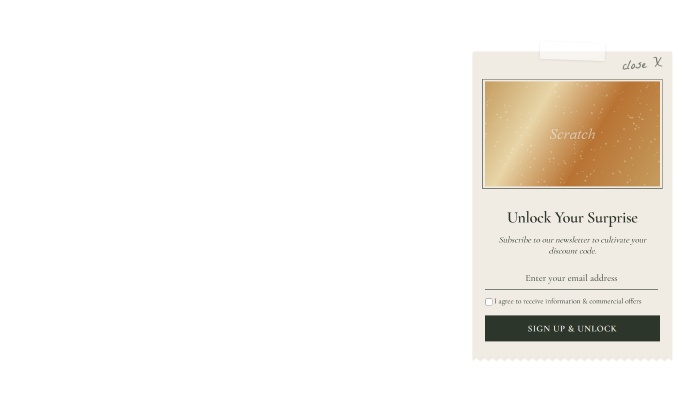
Organic scratch card

by WebshopWorks

NEW
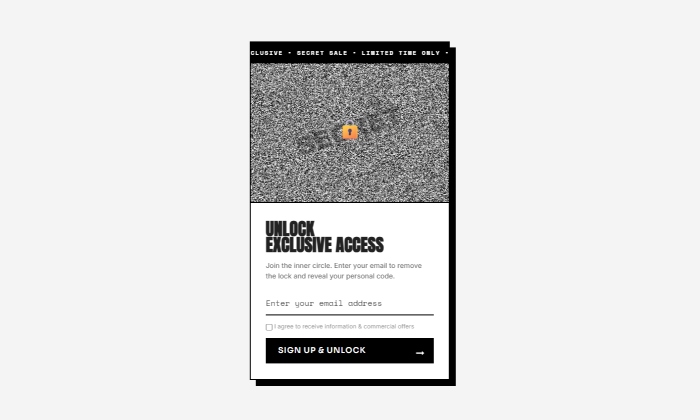
Brutalist scratch card

by WebshopWorks

NEW
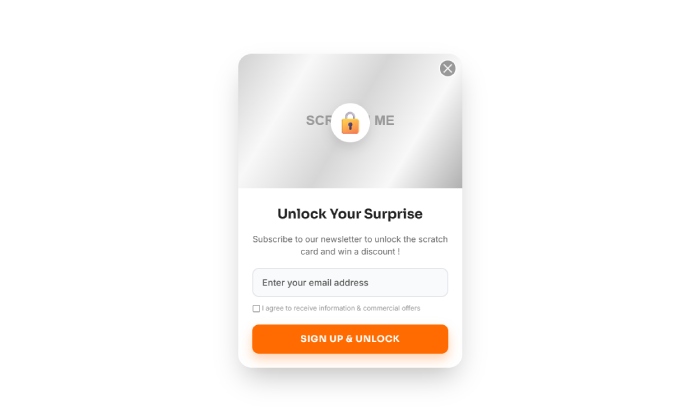
Scratch card
Scratch card

by WebshopWorks

NEW
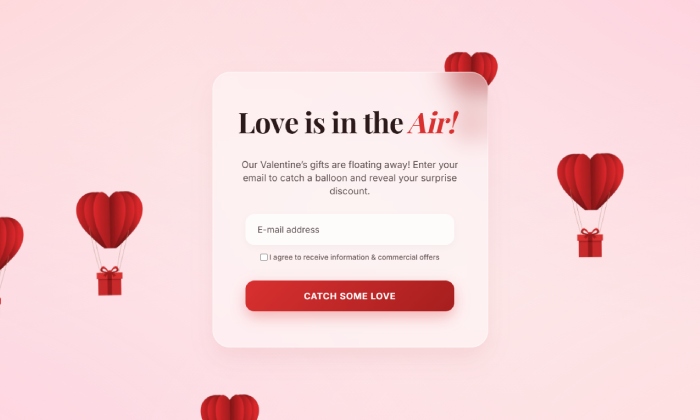
Love is in the air
Love is in the air

by WebshopWorks

NEW
Simple falling gifts

by WebshopWorks

NEW
Falling gifts
Falling gifts

by WebshopWorks

NEW
Puzzle discount
Puzzle discount

by WebshopWorks

NEW
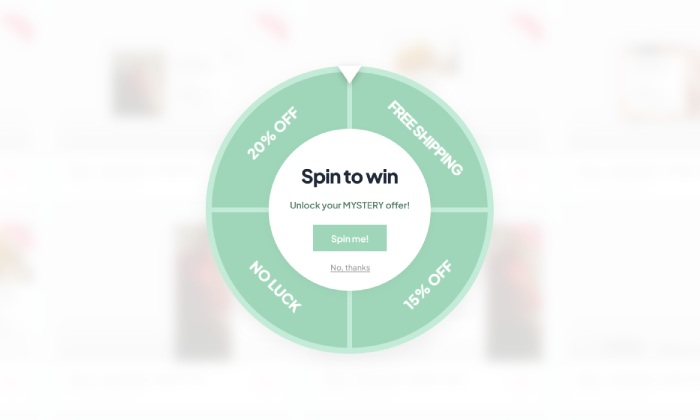
Elegant spin to win
Elegant spin to win

by WebshopWorks

NEW
Minty spin
Minty spin

by WebshopWorks

NEW
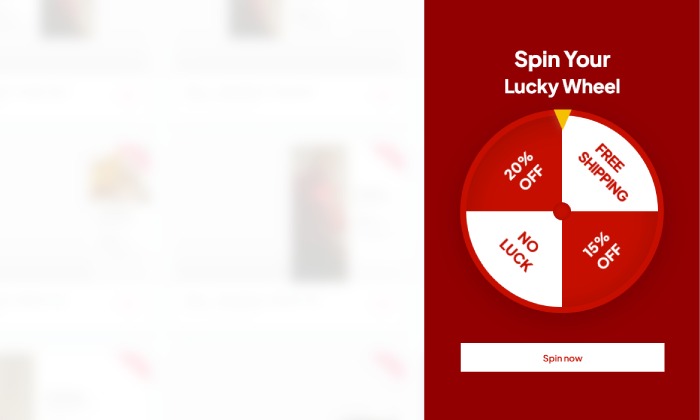
Spin and win sidebar

by WebshopWorks

NEW
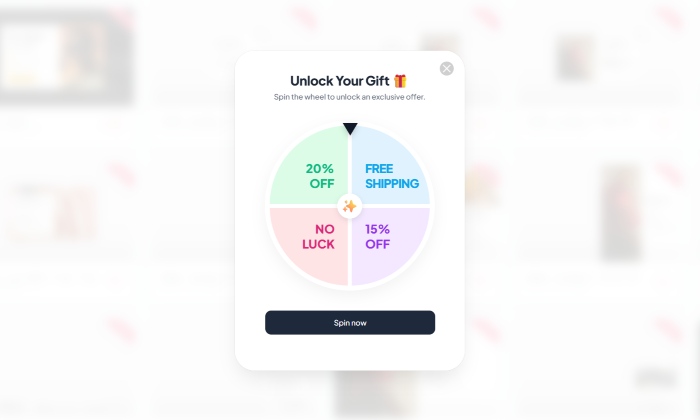
Spin and win
Spin and win

by WebshopWorks

NEW
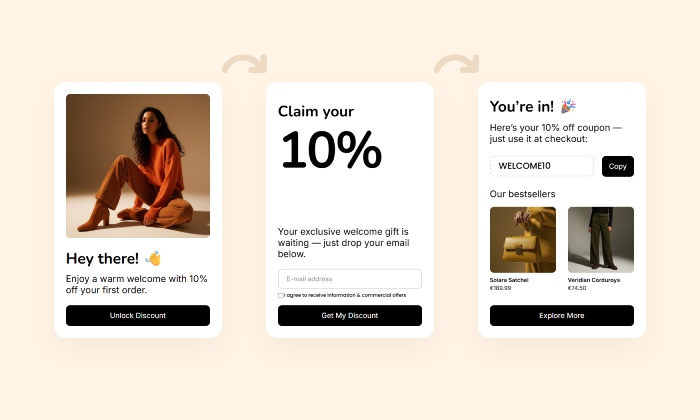
Multi-step welcome discount NEW
VIP popup
VIP popup

by WebshopWorks

NEW
Discount 6
Discount 6

by WebshopWorks

NEW
Welcome gift
Welcome gift

by WebshopWorks

NEW
Stay informed
Stay informed

by WebshopWorks

NEW
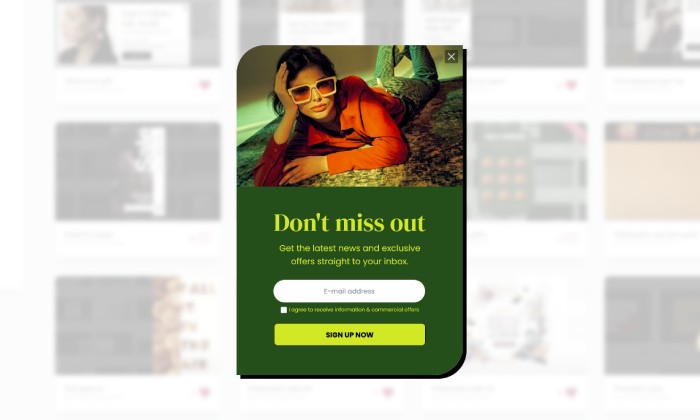
Don't miss out
Don't miss out

by WebshopWorks

NEW
Sign up with re-open

by WebshopWorks

Overlapped sign up
Overlapped sign up

by WebshopWorks

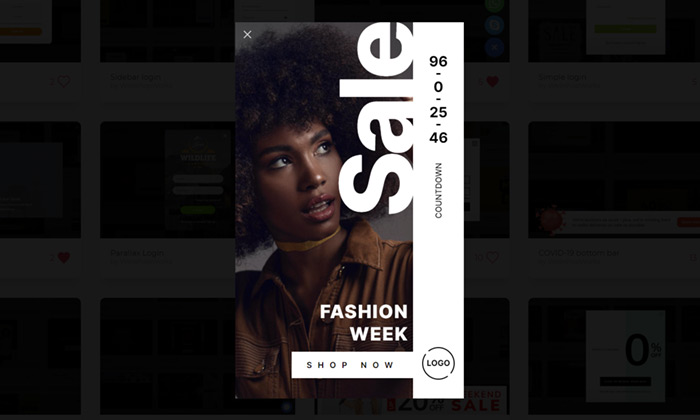
Fashion week
Fashion week

by WebshopWorks

Scratch to win
Scratch to win

by WebshopWorks

Influencer popup
Influencer popup

by WebshopWorks

Popup Transparent
Popup Transparent

by WebshopWorks

Weekend sale
Weekend sale

by WebshopWorks

Reveal your deal
Reveal your deal

by WebshopWorks

Sign up
Sign up

by WebshopWorks

Today's sale
Today's sale

by WebshopWorks

Hey, wait! (Exit-intent)

by WebshopWorks

Discount
Discount

by WebshopWorks

Sidebar countdown sale

by WebshopWorks

Countdown Timer
Countdown Timer

by WebshopWorks

Discount #5
Discount #5

by WebshopWorks

Discount 2
Discount 2

by WebshopWorks

Subscribe #5
Subscribe #5

by WebshopWorks

Mega sale
Mega sale

by WebshopWorks

Discount 4
Discount 4

by WebshopWorks

Discount 3
Discount 3

by WebshopWorks

Ticket
Ticket

by WebshopWorks

Mother's day
Mother's day

by WebshopWorks

Season sale
Season sale

by WebshopWorks

Easter subscribe bar

by WebshopWorks

Easter newsletter
Easter newsletter

by WebshopWorks

Easter sale
Easter sale

by WebshopWorks

Easter sale surprise

by WebshopWorks

Spring sale
Spring sale

by WebshopWorks

Spring super sale
Spring super sale

by WebshopWorks

Halloween gifts
Halloween gifts

by WebshopWorks

Halloween top bar push

by WebshopWorks

Fall special
Fall special

by WebshopWorks

Halloween sale #2
Halloween sale #2

by WebshopWorks

Halloween sale #1
Halloween sale #1

by WebshopWorks

Pumpkin sale
Pumpkin sale

by WebshopWorks

Black Friday sidebar

by WebshopWorks

Black Friday #5
Black Friday #5

by WebshopWorks

Black Friday #4
Black Friday #4

by WebshopWorks

Black Friday #1
Black Friday #1

by WebshopWorks

Black Friday #2
Black Friday #2

by WebshopWorks

Black Friday #3
Black Friday #3

by WebshopWorks

Black Friday #10
Black Friday #10

by WebshopWorks

Black Friday Notification

by WebshopWorks

Black Friday Notification Bar
Black Friday #9
Black Friday #9

by WebshopWorks

Black Friday #8
Black Friday #8

by WebshopWorks

Black Friday premium

by WebshopWorks

Black Friday #7
Black Friday #7

by WebshopWorks

Black Friday #6
Black Friday #6

by WebshopWorks

Gift voucher
Gift voucher

by WebshopWorks

Christmas bottom bar

by WebshopWorks

Christmas topbar
Christmas topbar

by WebshopWorks

Christmas sidebar countdown
Christmas sale
Christmas sale

by WebshopWorks

Christmas
Christmas

by WebshopWorks

Explore More Ways to Engage Visitors