Capture more subscribers with a low-friction popup

Boost your signup rate by breaking down the subscription process into easy, low-commitment steps that guide visitors to convert

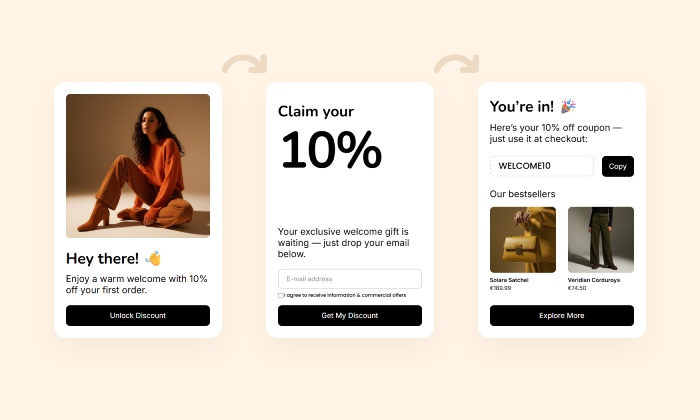
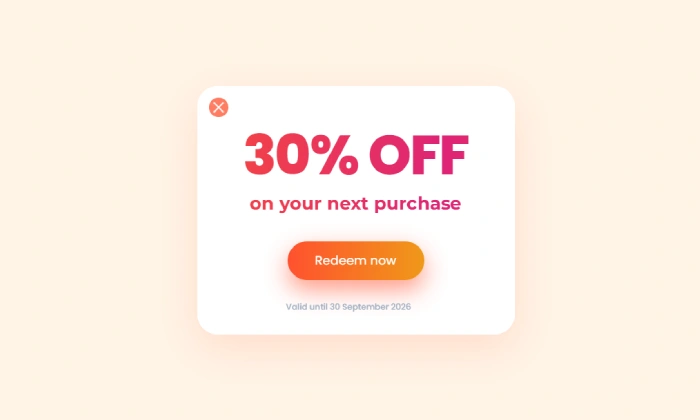
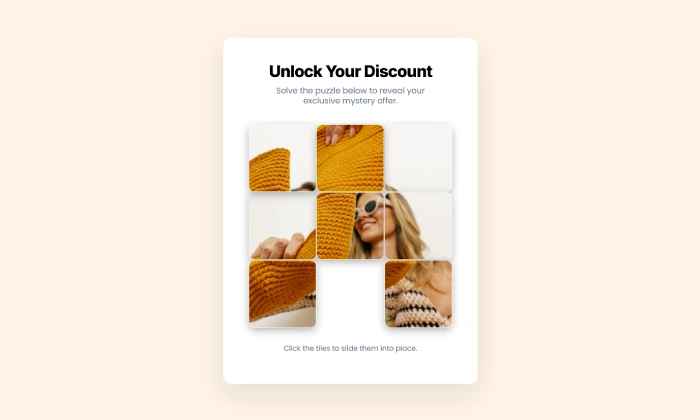
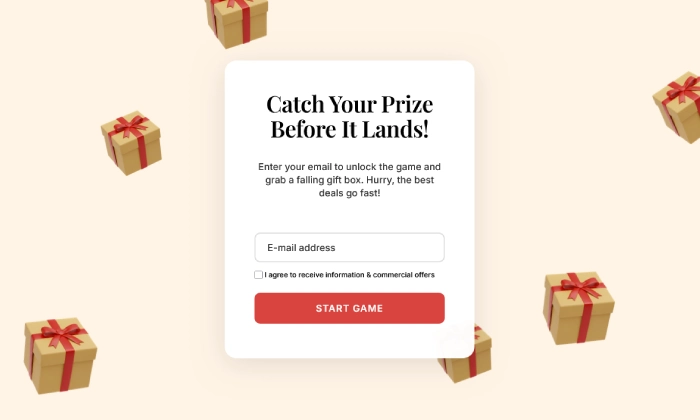
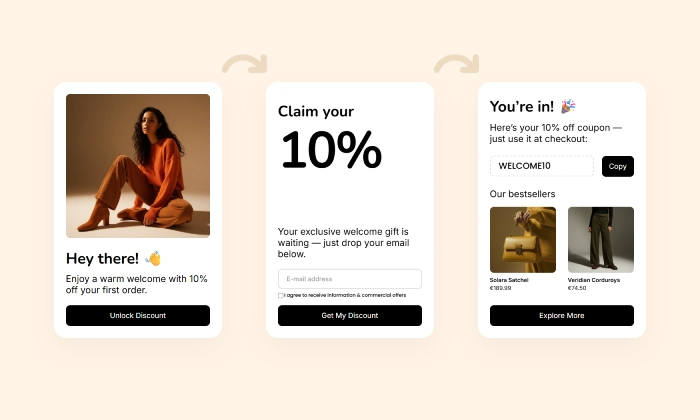
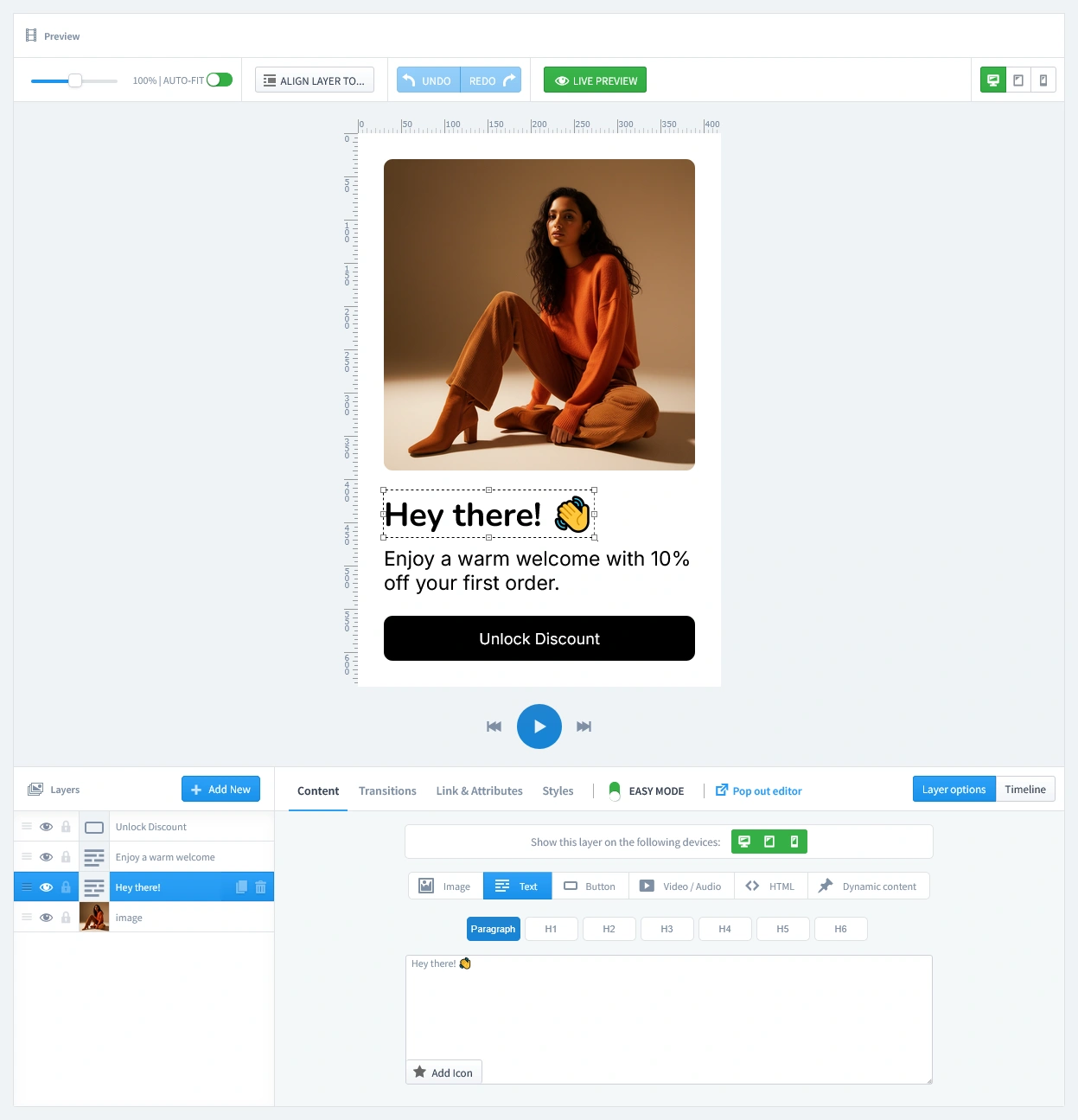
An example of a welcome popup used to convert new visitors into subscribers with a special discount offer.
Click to Try

Did You Know?

Multi-step forms can increase submission rates by up to 50% compared to single-step forms. By reducing initial friction and asking for just one click to start, you make it psychologically easier for visitors to complete the process.

Boost Your Store with Smart Popups

Unlock ready-made strategies and implement high-converting popups instantly.

When to use a Multi-Step Welcome Popup?

The magic of this approach lies in psychology. Instead of immediately asking for an email address—which can feel like a big commitment—you start with a simple, low-effort first step: a single click.

This "foot-in-the-door" technique works because once a visitor makes a small commitment (clicking "Unlock Discount"), they are far more likely to follow through and complete the next step (entering their email). It's a guided journey, not a demand. This is the perfect popup to:

  • Significantly increase your email signup conversion rate.
  • Reduce the initial hesitation that causes visitors to close popups.
  • Create a smoother, more engaging user experience.

How to set up the campaign?

We will build a multi-page popup that guides the user from a simple click to a successful subscription.

Step 0: Create your coupon code in PrestaShop

Before designing the popup, you must create the coupon code it will reveal. In PrestaShop, all coupon codes are created using Cart Rules.

  1. Navigate to Catalog > Discounts > Cart Rules in your back office and click Add new cart rule.
  2. Configure the rule:
    • On the Information tab: Give it a name and a Code (e.g., WELCOME10).
    • On the Conditions tab: Set any restrictions, like a minimum purchase amount. Most importantly, set the Total available for each user to 1 to ensure customers can only use this welcome offer once.
    • On the Actions tab: Define the offer (e.g., a 10% discount).
  3. Click Save. Your coupon code is now ready.
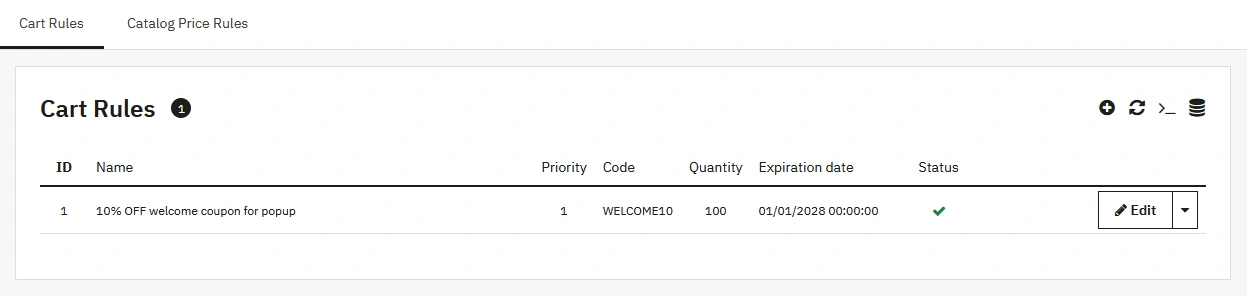
A screenshot of the PrestaShop back office showing the Cart Rules list. The newly created "10% OFF welcome coupon" is listed, showing the code "WELCOME10" and an active status.

Step 1: Create your popup

Go to Creative Popup > Popups and create a new popup.

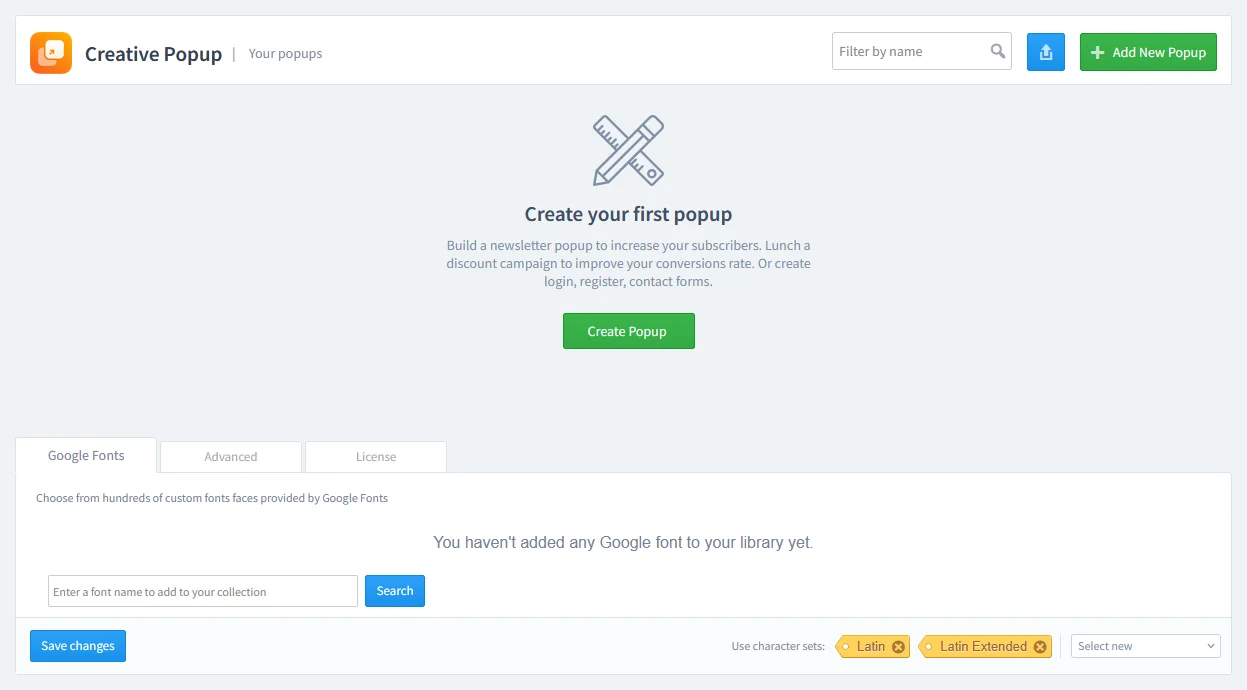
The Creative Popup dashboard in PrestaShop, showing the starting screen to create a new popup campaign.

Select a multi-step or two-page template from our library to get started quickly.

Step 2: Design your popup

This campaign uses multiple pages. You will need to design each one in the editor.

  • The Low-Commitment Teaser (First Tab): This is the first thing your visitor sees. On this main design tab, you can easily customize the colors, font, and image to fit your store's design.
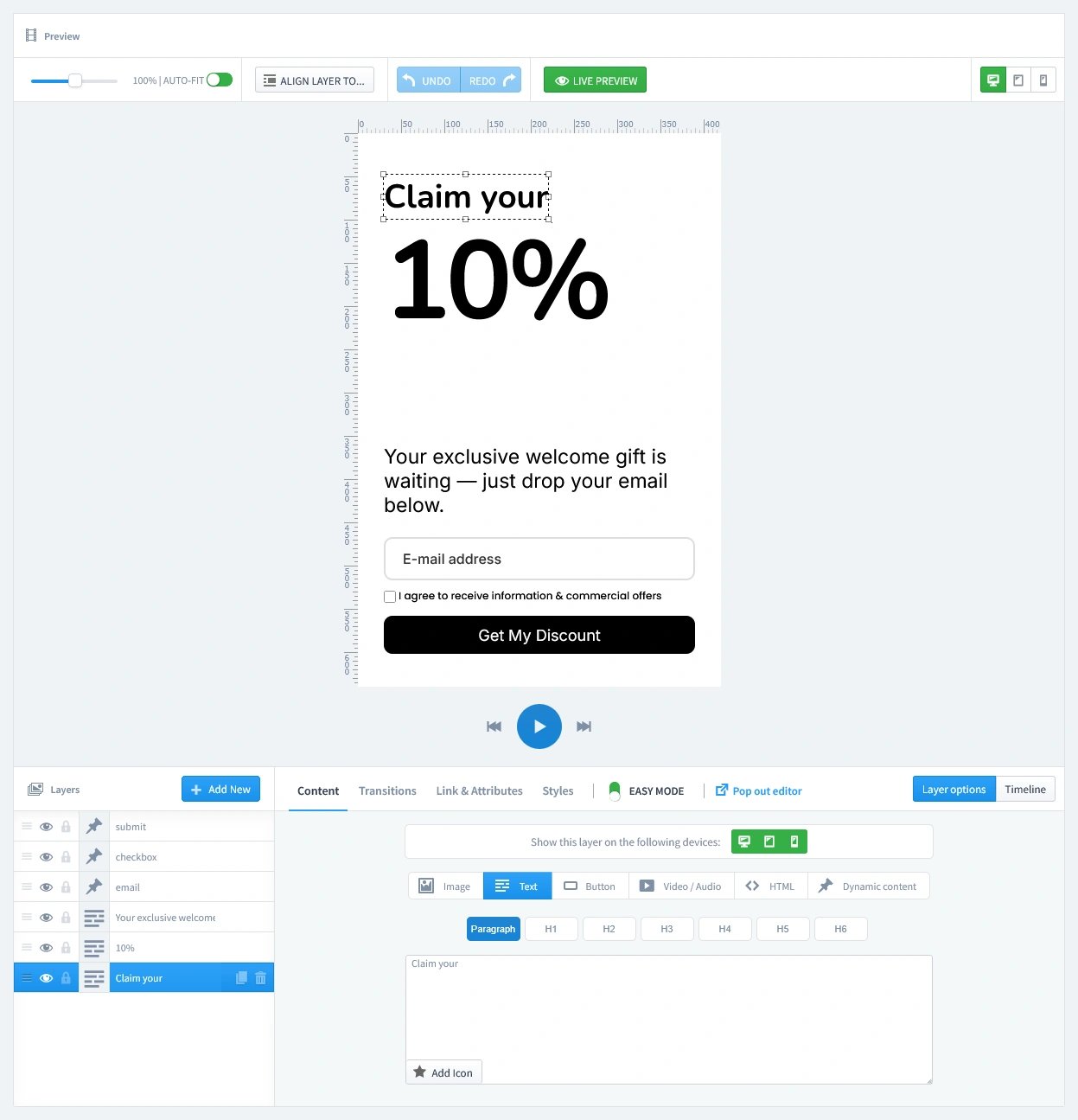
  • The Email Capture (Second Tab): This page appears after the user clicks the "Unlock Discount" button, and it contains the email input field. 
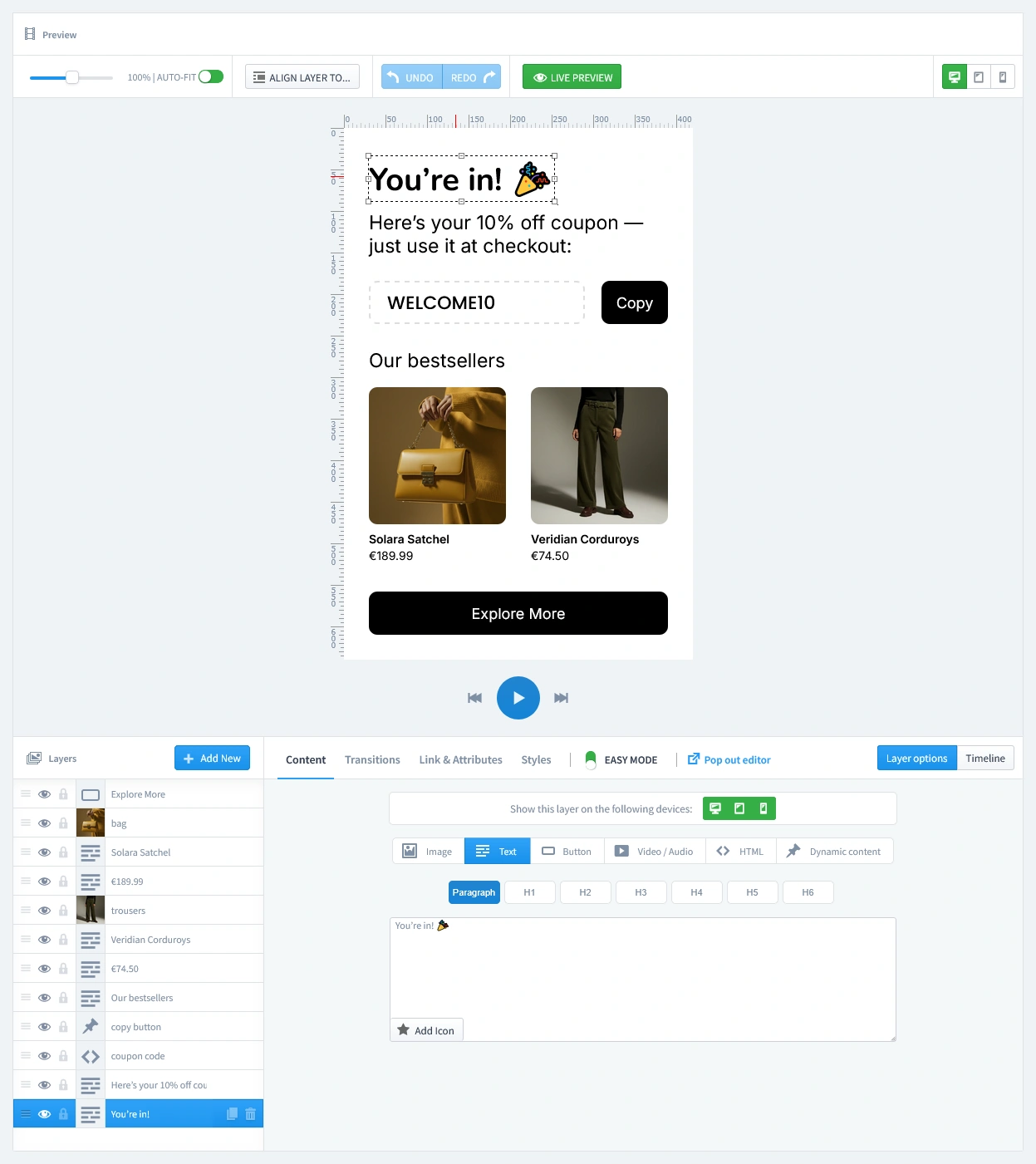
  • The Reward (Third Tab): This is the final "Thank You" page, shown after a successful submission. Make sure you enter the coupon code you created in Step 0 into the designated "coupon" layer of the popup. This will display the correct code for your customer to use. You can also guide your new subscriber's next move by showcasing a few of your bestselling products.
Icon of the Spam Protection - Invisible reCaptcha module for blocking spam bots
Pro-Tip: Keep Your Email List Clean from Spam

Don't let spam bots fill your database with fake entries. Protect your form by adding a layer of security with our reCAPTCHA Module. It integrates with PrestaShop to block bots without annoying real customers.

Step 3: Set Triggers

In this step, we'll set the rules for when your popup appears. Let's begin by clicking on the Triggers tab.

1. Launch Popup

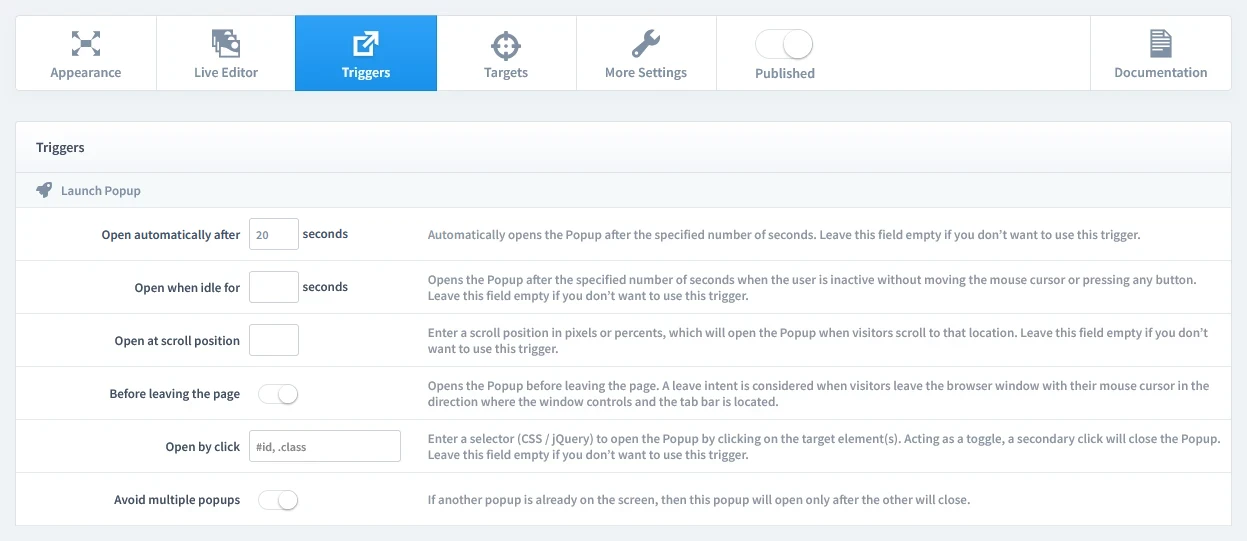
You have several powerful options, but for this campaign, select Open automatically after 20 seconds. This is the key to targeting engaged visitors who are actively considering your products.

The 'Triggers' tab in the popup settings, highlighting the 'Open automatically after 20 seconds' option for launching the popup.

2. Repeat Control

For this type of exclusive offer, it's crucial that a visitor only sees it once. To achieve this, start by enabling the "Prevent reopening" parameter. This setting prevents the popup from appearing again. We will combine this with a rule on the Targets tab to ensure it only appears once for each first-time visitor.

Configuring the 'Repeat Control' settings to prevent the popup from appearing again, with 'Prevent reopening' enabled.

Step 4: Set Targets

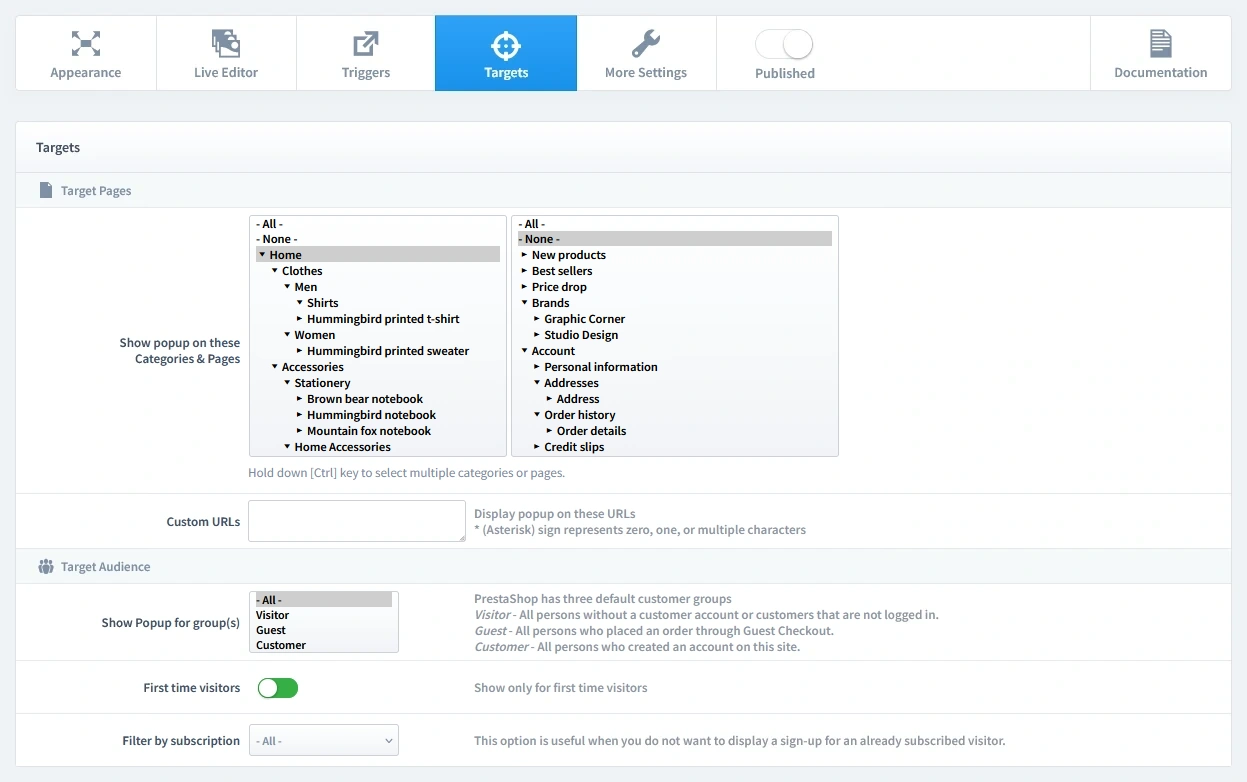
Now that we've set when the popup appears, it's time to define who sees it and on which pages. Let's begin by clicking on the Targets tab.

  • Target Pages: For maximum reach, we recommend showing this popup on your Homepage.
  • Target Audience: Configure the audience to show this popup to First-time visitors only. This focuses your discount on acquiring new customers, which is the most profitable way to use this strategy.
Configuring the targets for a PrestaShop welcome discount popup: selecting the Homepage and filtering for first-time, non-subscribed users.

Step 5: Publish your campaign

Once you're satisfied with your design, triggers, and targets, it's time to go live.

  1. Navigate to the top of the editor and find the "Published" switch.
  2. Click the switch to turn it green.
  3. Make sure to click the Save button in your editor to apply all your changes.
The main settings bar in the Creative Popup editor, with the 'Published' switch toggled on to activate the campaign.

That's it! Your campaign is now live and ready to start boosting conversions on your store.

Don't have the module yet?

Start putting this strategy to work on your PrestaShop store.

Choose a Design and Go Live in Just a Few Clicks

Why start from a blank page? Our template library is packed with professionally designed, conversion-focused layouts ready for your PrestaShop store.

Multi-step welcome discount NEW
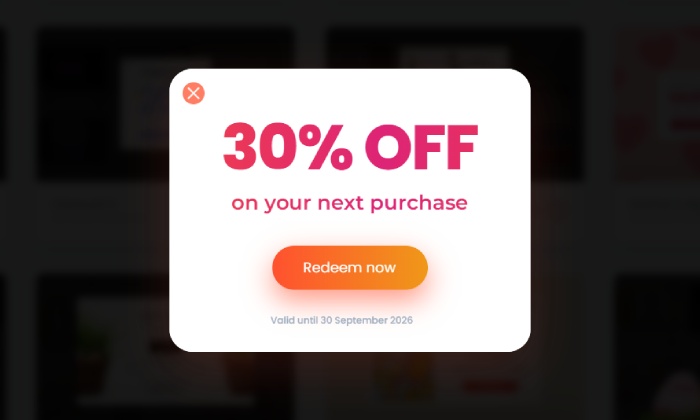
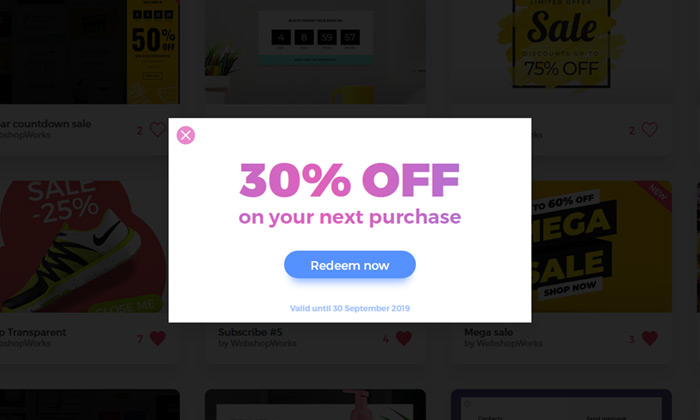
Discount 6
Discount 6

by WebshopWorks

NEW
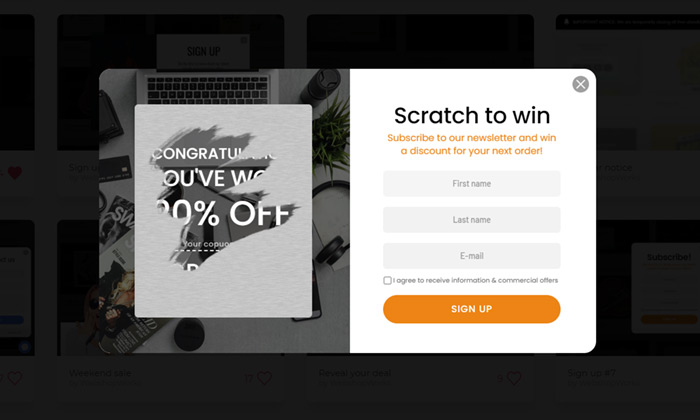
Scratch to win
Scratch to win

by WebshopWorks

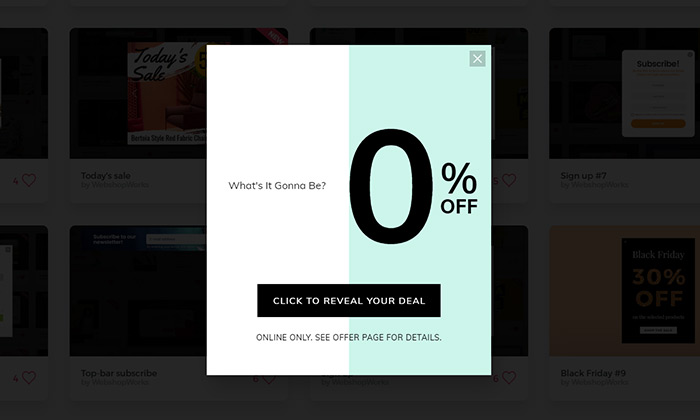
Reveal your deal
Reveal your deal

by WebshopWorks

Discount 2
Discount 2

by WebshopWorks

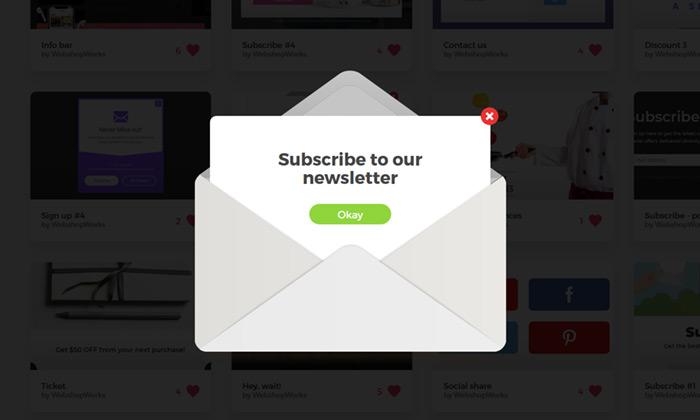
Mail
Mail

by WebshopWorks

Explore More Ways to Engage Visitors

An example of a clean, user-friendly login popup designed to streamline the customer sign-in process.

Login Popup

Allow your customers to log in from any page without interruption, reducing friction and improving t…

Read more »