Streamline the customer login experience

Allow your customers to log in from any page without interruption, reducing friction and improving the user experience

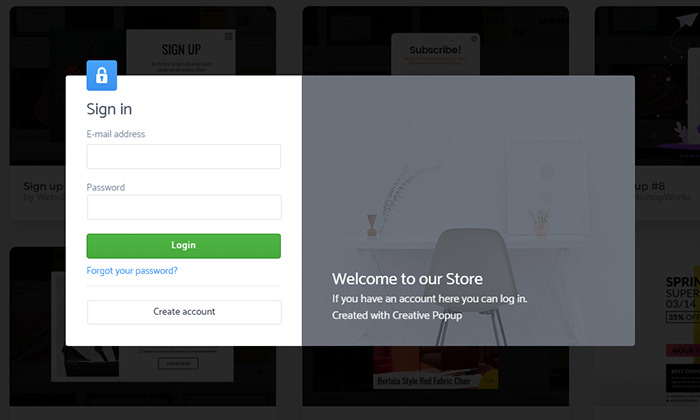
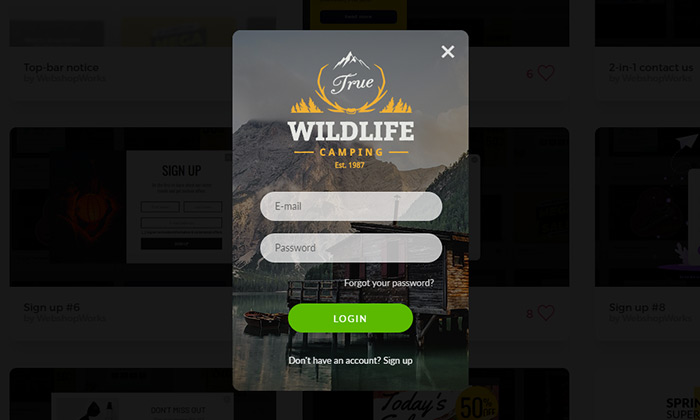
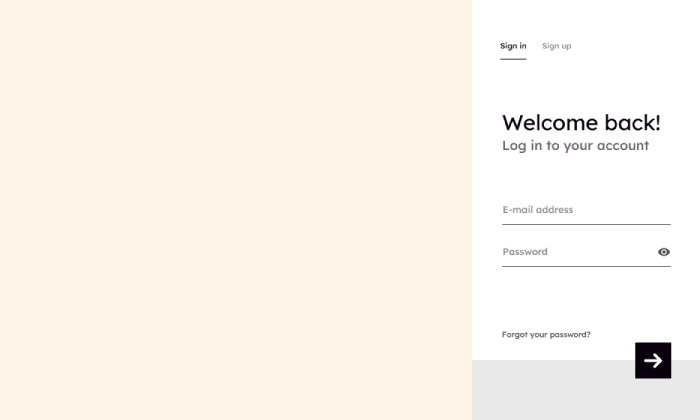
An example of a clean, user-friendly login popup designed to streamline the customer sign-in process.
Click to Try

Did You Know?

Returning customers are the backbone of a successful store, often spending up to 67% more than new customers. A frictionless login process is the first step to welcoming them back and unlocking personalized experiences.

Boost Your Store with Smart Popups

Unlock ready-made strategies and implement high-converting popups instantly.

When to use a Login Popup?

Traditionally, when a customer clicks "Sign In," they are taken to a separate login page, interrupting their shopping flow. A login popup completely changes this. It presents the login form in a sleek overlay on the current page, allowing for a fast and frictionless experience.

This is the perfect popup to:

  • Improve the customer experience by eliminating page reloads.
  • Reduce friction for returning customers who want to access their account.
  • Enable personalization by making it easy for users to log in.

How to set up the campaign?

The key to this popup is that it must be triggered by a user's click, not automatically. We'll set it up to open whenever a user clicks your site's main "Sign In" link.

Step 1: Create your popup

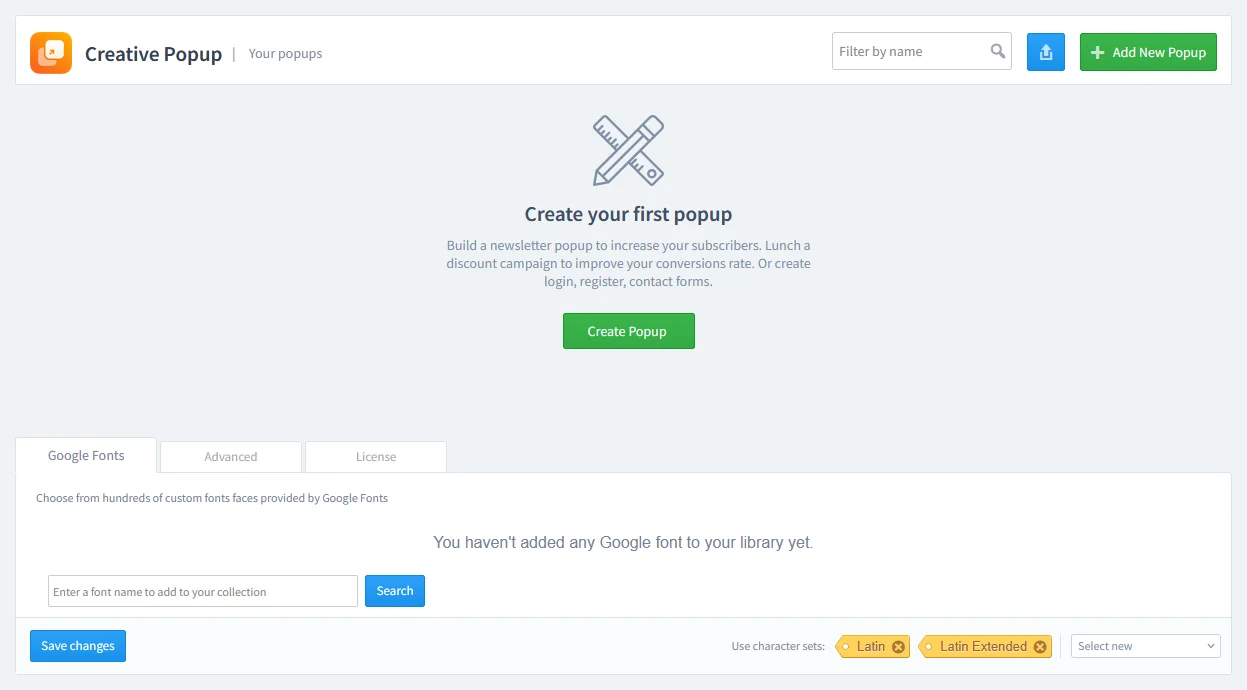
Go to Creative Popup > Popups and create a new popup.

The Creative Popup dashboard in PrestaShop, showing the starting screen to create a new popup campaign.

Our template library includes pre-made layouts specifically for login forms. We recommend starting with one of these, as they are already configured with the necessary fields and links.

Step 2: Design your popup

The design should be clean, simple, and trustworthy.

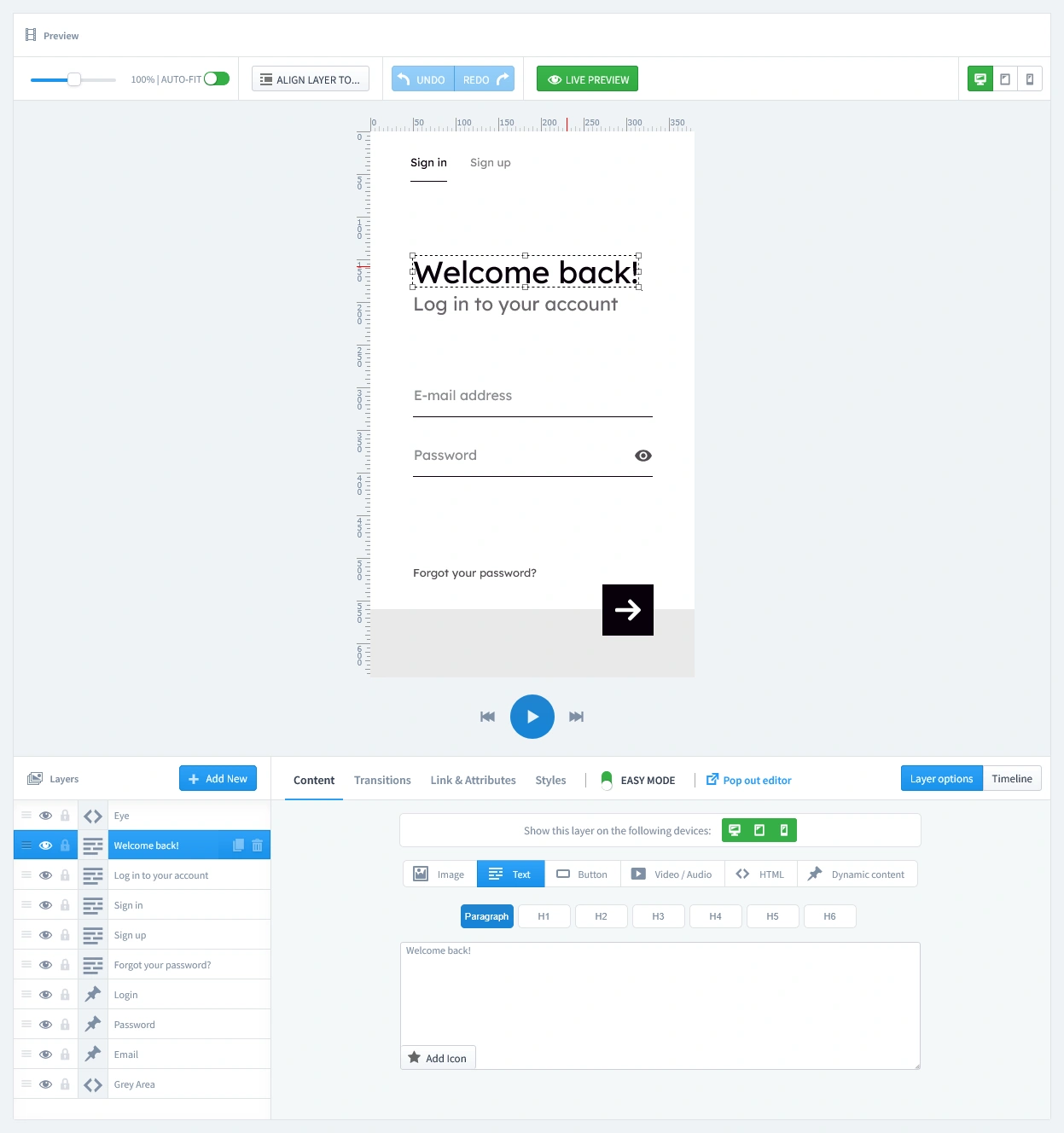
  • Write a Clear Headline: A simple "Log In to Your Account" or "Welcome Back!" is perfect.
  • Configure the Form Fields: Ensure the popup includes the standard Email and Password input fields.
  • Add Helpful Links: It's a best practice to include a "Forgot Password?" link. You can also add a "Create an Account" link for new visitors who clicked the login button by mistake.
The live editor interface of the Creative Popup module, showing how to customize the design, text, and layers of the popup.
Icon of the Spam Protection - Invisible reCaptcha module for blocking spam bots
Pro-Tip: Keep Your Email List Clean from Spam

Don't let spam bots fill your database with fake entries. Protect your form by adding a layer of security with our reCAPTCHA Module. It integrates with PrestaShop to block bots without annoying real customers.

Step 3: Set Triggers

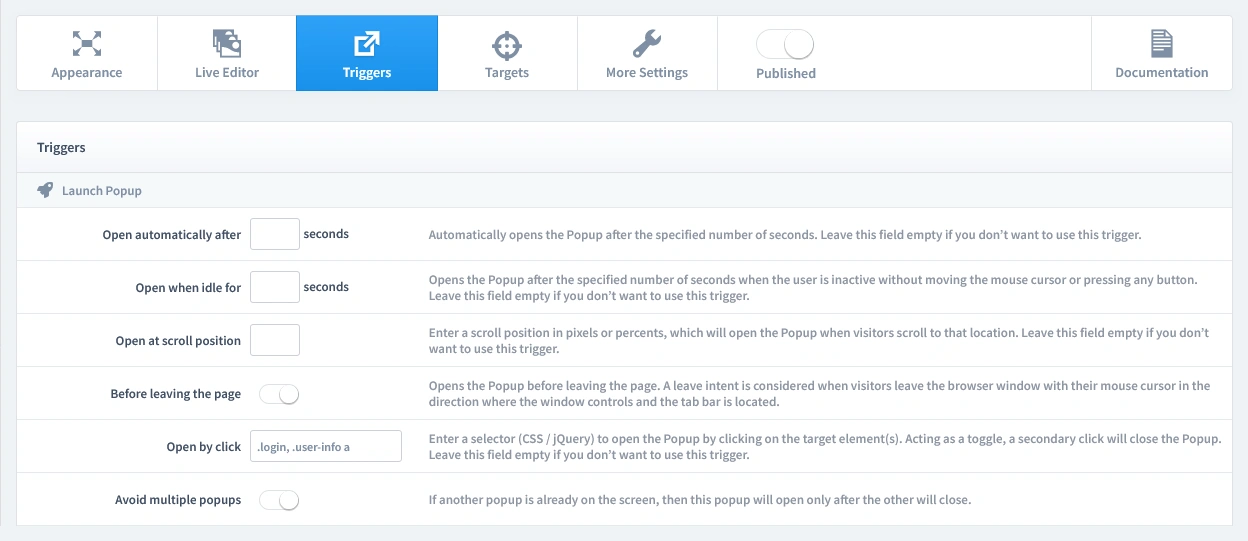
This is the most important step for a login popup. It must only open when the user decides to. Let's begin by clicking on the Triggers tab.

1. Launch Popup

You have several powerful options, but for this campaign, select Open by click. This is the essential trigger. In the input field next to it, you will need to enter the CSS selector for your theme's main "Sign In" link (e.g., .login, .user-info a). This tells the popup to open only when that specific link is clicked.

Configuring the 'Open by click' trigger for a PrestaShop login popup, with a CSS selector entered to link the popup to the main 'Sign In' button.

2. Repeat Control

A customer should be able to open and close the login form as needed. Simply enable the "Repeat Popup" parameter and leave the other settings disabled.

The 'Repeat Control' settings configured to make the login popup always available for users to click and open at any time during their visit.

Step 4: Set Targets

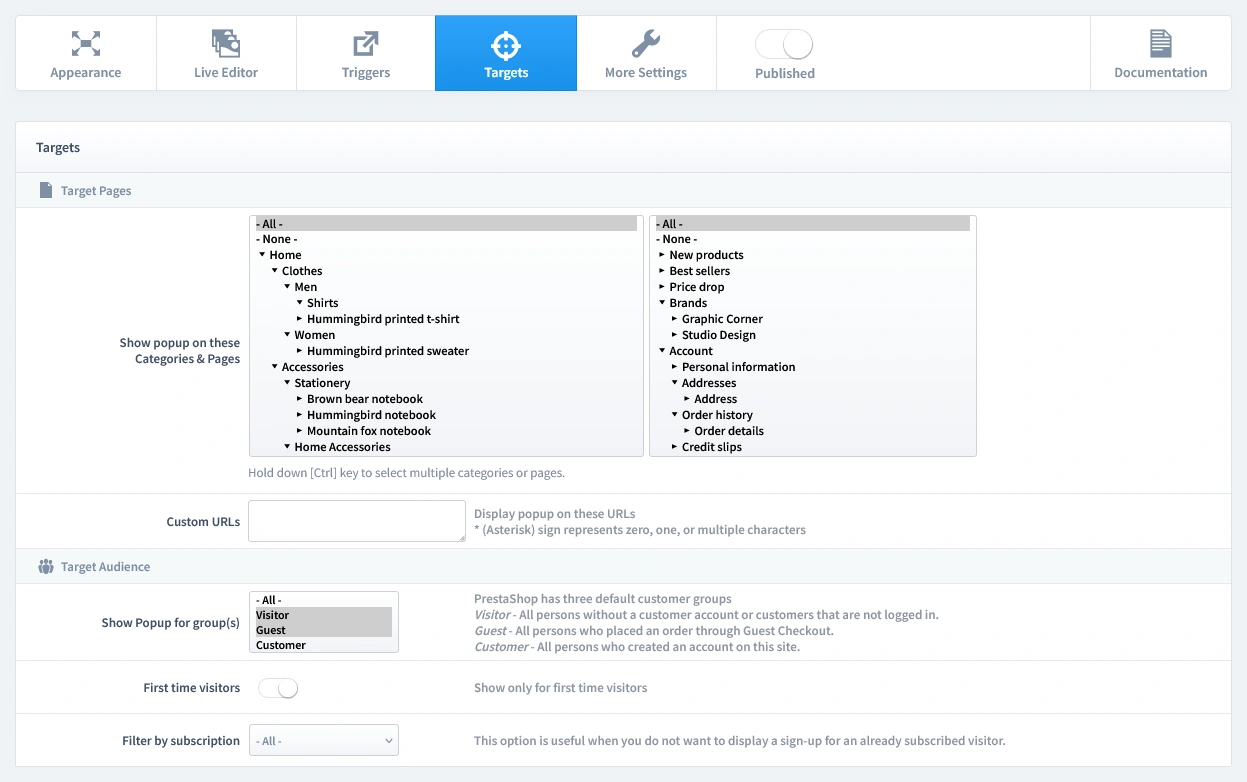
Now that we've set when the popup appears, it's time to define who sees it and on which pages. Let's begin by clicking on the Targets tab.

  • Target Pages: The login link is usually in the header, so it's available on every page. Therefore, you should set this popup to show on All Pages.
  • Target Audience: This is a crucial step; this popup is only for users who are not logged in. In the "Show Popup for group(s)" setting, select Visitor and Guest. Make sure to deselect the "Customer" group, as they are already logged in.
Configuring the targets for a PrestaShop login popup: setting it to display on all pages and filtering the audience to show only to non-logged-in users (Visitor and Guest groups).

Step 5: Publish your campaign

Once you're satisfied with your design, triggers, and targets, it's time to go live.

  1. Navigate to the top of the editor and find the "Published" switch.
  2. Click the switch to turn it green.
  3. Make sure to click the Save button in your editor to apply all your changes.
The main settings bar in the Creative Popup editor, with the 'Published' switch toggled on to activate the campaign.

That's it! Your campaign is now live and ready to start boosting conversions on your store.

Don't have the module yet?

Start putting this strategy to work on your PrestaShop store.

Choose a Design and Go Live in Just a Few Clicks

Why start from a blank page? Our template library is packed with professionally designed, conversion-focused layouts ready for your PrestaShop store.

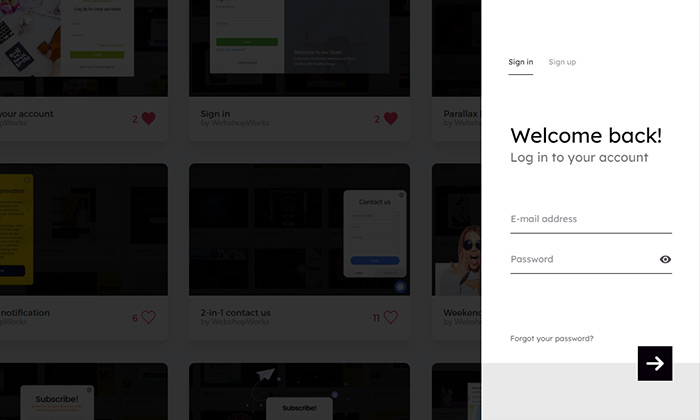
Sidebar login
Sidebar login

by WebshopWorks

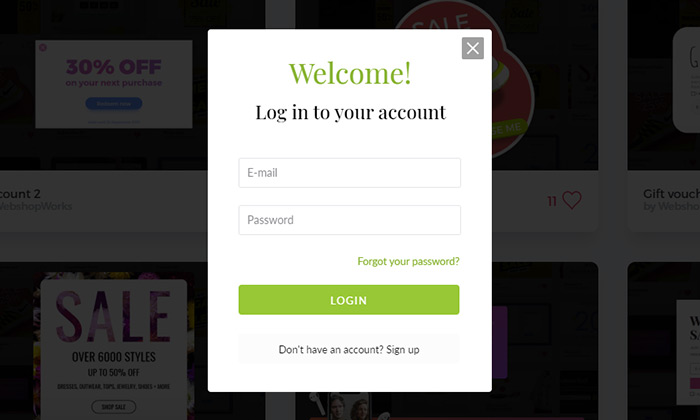
Simple login
Simple login

by WebshopWorks

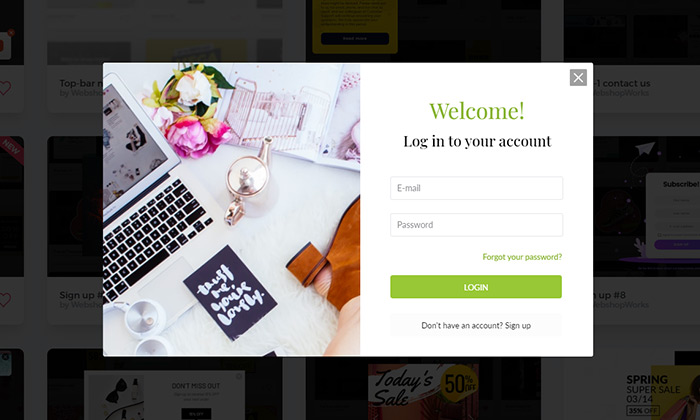
Log in to your account

by WebshopWorks

Sign in
Sign in

by WebshopWorks

Parallax Login
Parallax Login

by WebshopWorks

Explore More Ways to Engage Visitors