

Boost checkout confidence and save sales

Remind shoppers of your store’s key benefits at the last second to reduce hesitation and recover abandoning carts

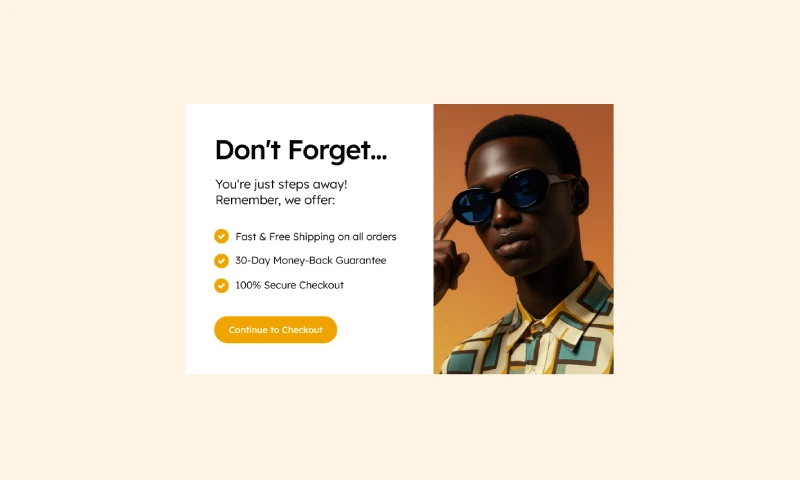
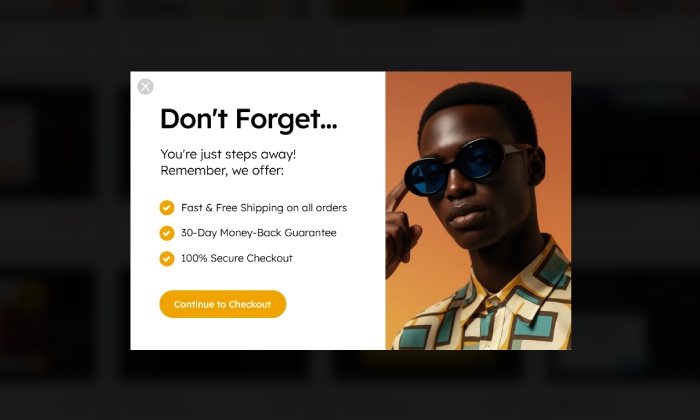
An example of a clean, user-friendly exit-intent popup designed to reduce cart abandonment by reminding shoppers of store benefits like free shipping and secure checkout.
Click to Try

Did You Know?

Almost 70% of shopping carts are abandoned due to uncertainty about shipping, returns, or security. A well-timed reassurance message can give customers the confidence they need to complete their purchase.

Boost Your Store with Smart Popups

Unlock ready-made strategies and implement high-converting popups instantly.

When to use an Exit-Intent Popup?

An exit-intent popup is the perfect tool to address last-minute customer hesitation. When a shopper is about to leave their cart, it’s often not about the price — it’s about trust. They might be worried about shipping costs, return policies, or payment security.

This popup strategy tackles those fears head-on; it offers peace of mind. Use it to:

  • Reduce cart abandonment by reminding customers of your key benefits.
  • Increase checkout completions by building trust and confidence.
  • Highlight your store's value at the most critical moment of the purchase journey.

How to set up the campaign?

First, let's design what your visitors will see. While Creative Popup gives you the power to build a completely custom design from scratch, the fastest way to launch your campaign is by starting with a template. For this guide, we'll use one of our professional templates.

Step 1: Create your popup

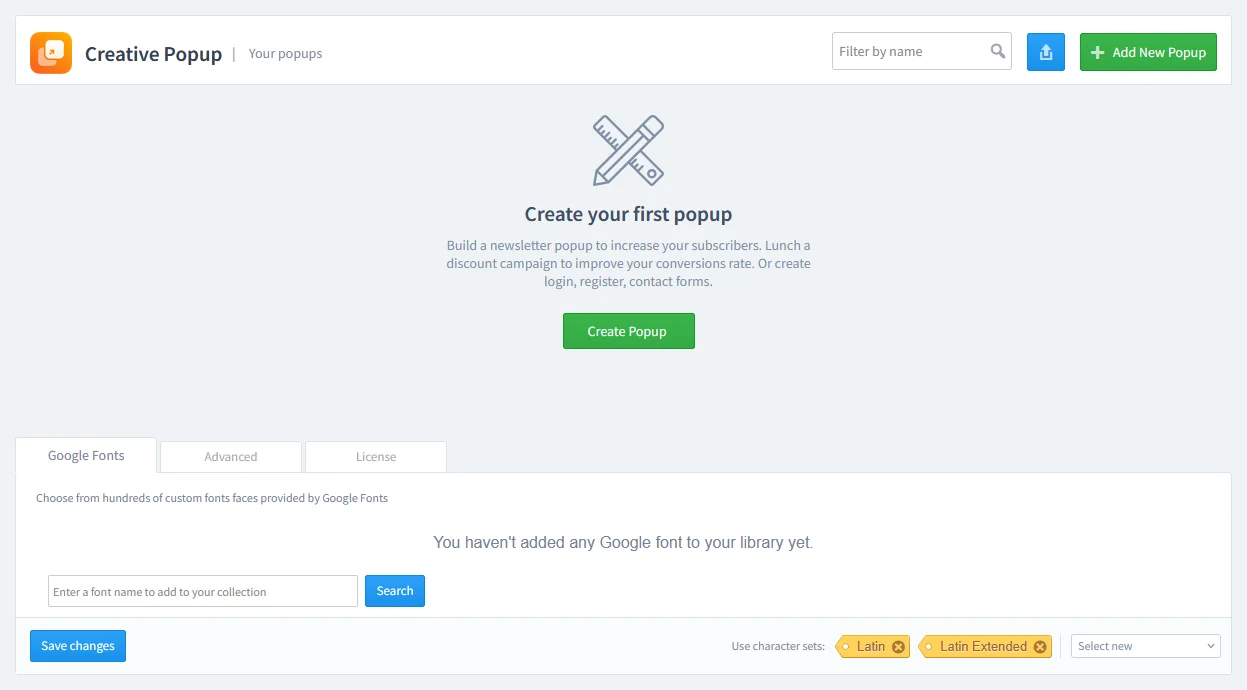
Go to Creative Popup > Popups and create a new popup.

The Creative Popup dashboard in PrestaShop, showing the starting screen to create a new popup campaign.

Select a simple notification or informational template. You want the design to be clean, clear, and trustworthy.

Step 2: Design your popup

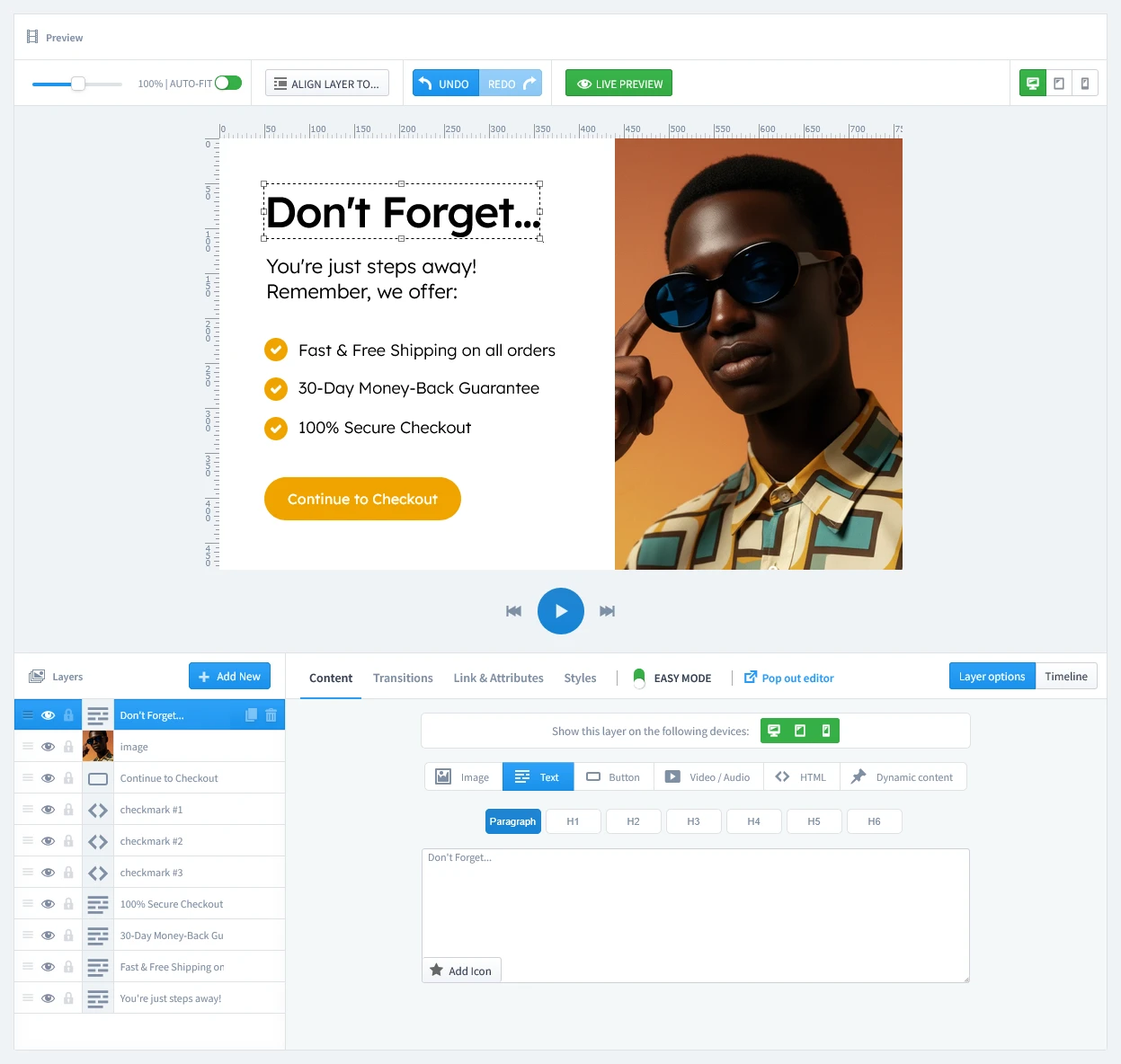
Easily customize the colors, font, and image if needed to fit your store's design.

The live editor interface of the Creative Popup module, showing how to customize the design, text, and layers of the popup.

Step 3: Set Triggers

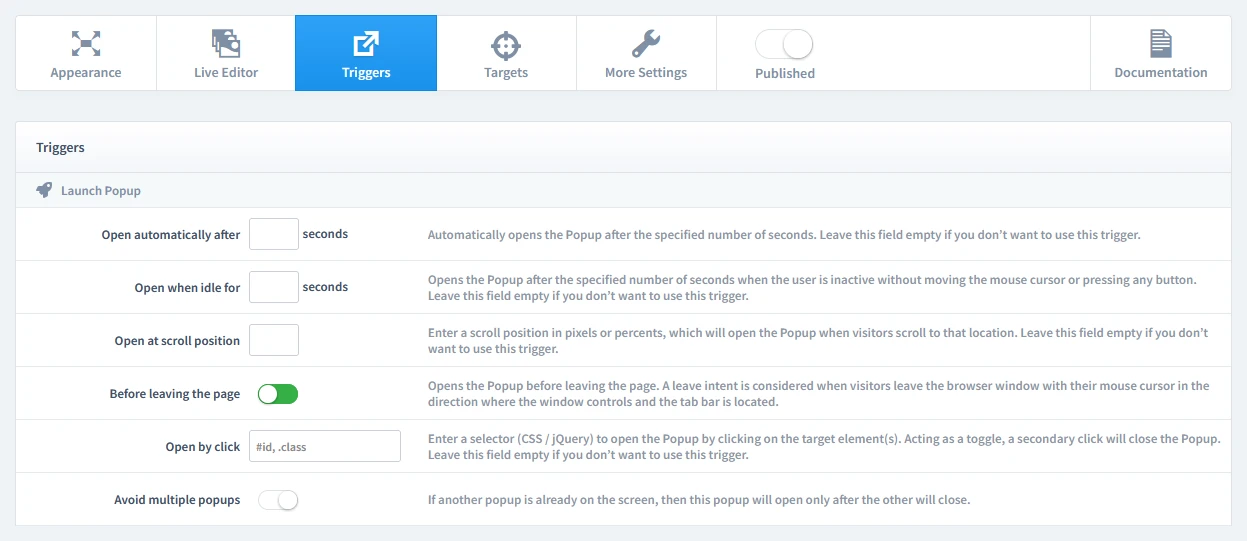
In this step, we'll set the rules for when your popup appears. Let's begin by clicking on the Triggers tab.

1. Launch Popup

You have several powerful options, but for this campaign, select Before leaving the page. This is the essential trigger for an exit-intent campaign. It activates only when the user shows intent to leave, making it completely non-interruptive.

The 'Triggers' tab in the popup settings, highlighting the 'Before leaving the page' option to enable the exit-intent trigger.
Pro-Tip: Reaching Abandoning Visitors on Mobile

The 'Before leaving the page' trigger is designed for desktop users with a mouse. To achieve a similar result on mobile, you need a different strategy:

  • Create a separate popup campaign specifically for your mobile visitors.
  • For this new campaign, use the 'Open when idle' trigger and set it to 10-20 seconds. This effectively targets a user who has stopped interacting and may be about to leave.
  • In the Targets tab, make sure to set this idle-triggered popup to show only on mobile devices, while hiding your main exit-intent popup from mobile.

2. Repeat Control

To prevent showing the same popup to a visitor too often, choose Repeat once in a browser session. To set this up, enable "Repeat Popup" and set the "Repeat after" value to 0 days.

Configuring the 'Repeat Control' settings to show the popup once per browser session, with 'Repeat Popup' enabled and 'Repeat after' set to 0 days.

Step 4: Set Targets

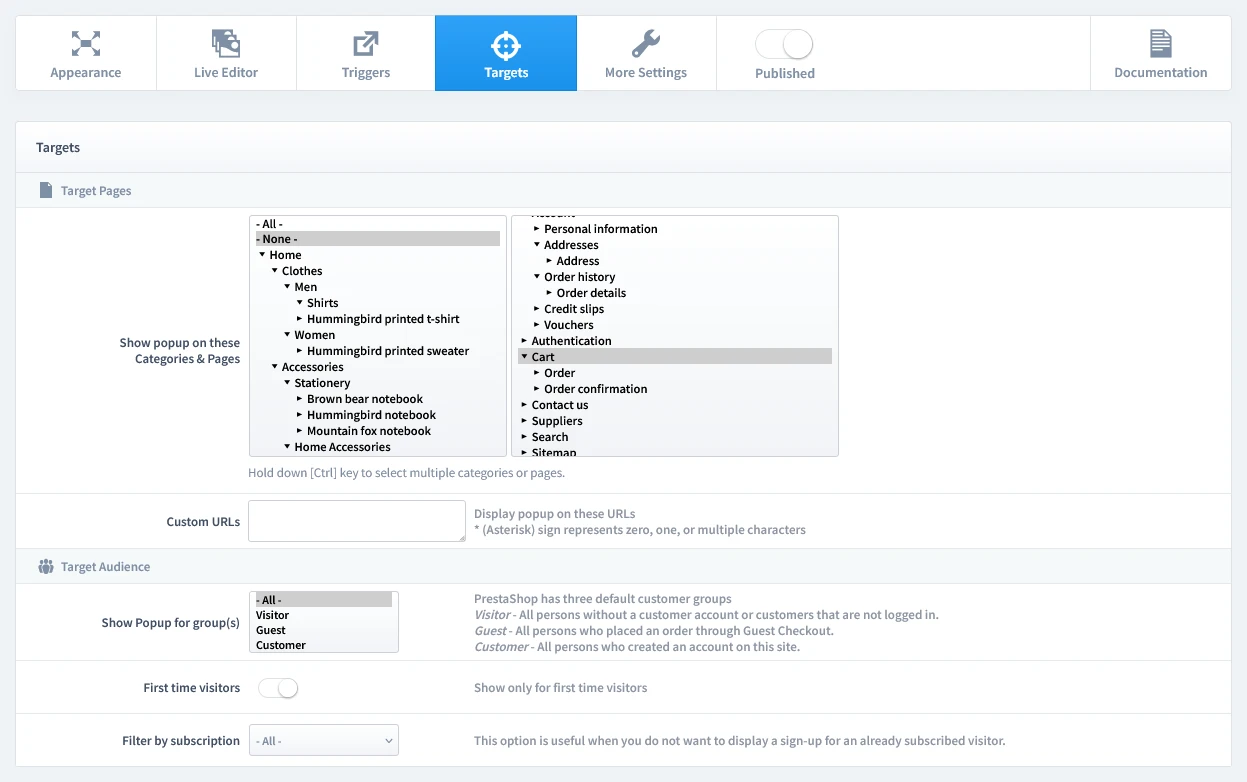
Now that we've set when the popup appears, it's time to define who sees it and on which pages. Let's begin by clicking on the Targets tab.

  • Target Pages: We recommend showing this popup only on your Cart Page. This is where last-minute hesitation is most common and where a reassurance message will have the biggest impact.
  • Target Audience: Since this popup provides helpful information without offering a discount, it's safe and beneficial to show it to all visitors who are abandoning their cart, including new and returning customers.
Configuring the targets for an exit-intent popup in PrestaShop: selecting the Cart Page to reduce cart abandonment.

Step 5: Publish your campaign

Once you're satisfied with your design, triggers, and targets, it's time to go live.

  1. Navigate to the top of the editor and find the "Published" switch.
  2. Click the switch to turn it green.
  3. Make sure to click the Save button in your editor to apply all your changes.
The main settings bar in the Creative Popup editor, with the 'Published' switch toggled on to activate the campaign.

That's it! Your campaign is now live and ready to start boosting conversions on your store.

Don't have the module yet?

Start putting this strategy to work on your PrestaShop store.

Choose a Design and Go Live in Just a Few Clicks

Why start from a blank page? Our template library is packed with professionally designed, conversion-focused layouts ready for your PrestaShop store.

Don't Forget...
Don't Forget...

by WebshopWorks

NEW
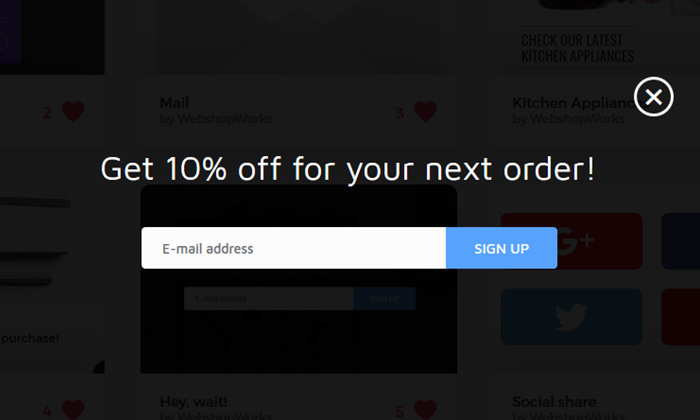
Hey, wait! (Exit-intent)

by WebshopWorks

Watch promo
Watch promo

by WebshopWorks

Explore More Ways to Engage Visitors

An example of a clean, user-friendly login popup designed to streamline the customer sign-in process.

Login Popup

Allow your customers to log in from any page without interruption, reducing friction and improving t…

Read more »