

Engage customers with an instant WhatsApp live chat

Provide real-time support and build relationships by allowing visitors to chat with you directly on their favorite messaging app

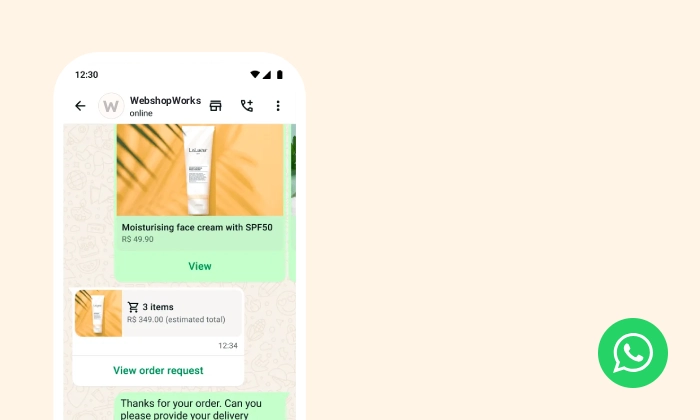
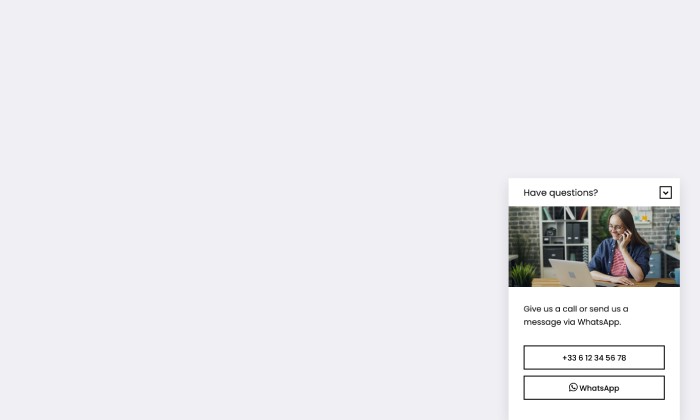
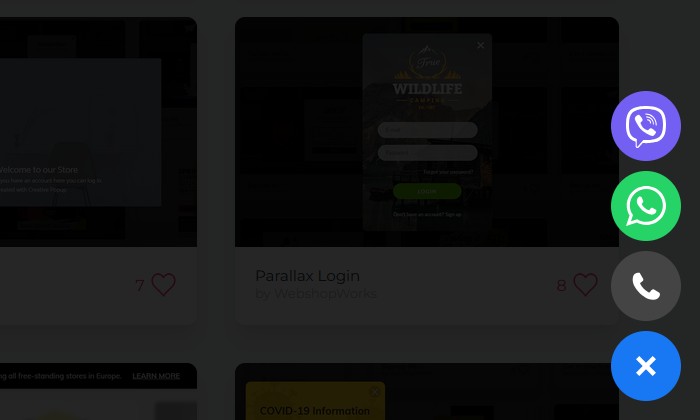
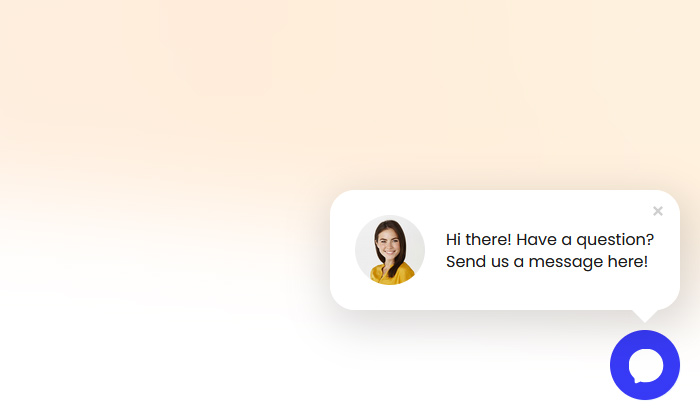
An example of a user-friendly WhatsApp chat popup used to answer customer questions and drive sales through real-time support.
Click to Try

Did You Know?

Messages sent to businesses on platforms like WhatsApp have an open rate of up to 98%. Being available on WhatsApp is one of the most effective ways to ensure your customers see your message and engage with your brand.

Boost Your Store with Smart Popups

Unlock ready-made strategies and implement high-converting popups instantly.

When to use a WhatsApp Live Chat Popup?

You might not immediately think of a popup module for this, but Creative Popup is more than just a marketing tool. You can easily use it to create a complete WhatsApp live chat for your store. This means you can add an instant chat feature to your site without needing to buy and install a separate, dedicated addon—it's all included in one powerful module.

This is the perfect popup to:

  • Provide instant, real-time support for pre-sale questions.
  • Meet your customers where they are, on a platform they use every day.
  • Build trust and personal connections through direct conversation.
  • Increase conversion rates by quickly removing any purchase barriers.

How to set up the campaign?

The setup is simple. We will create a clickable WhatsApp icon that links directly to your business's WhatsApp chat.

Step 1: Create your popup

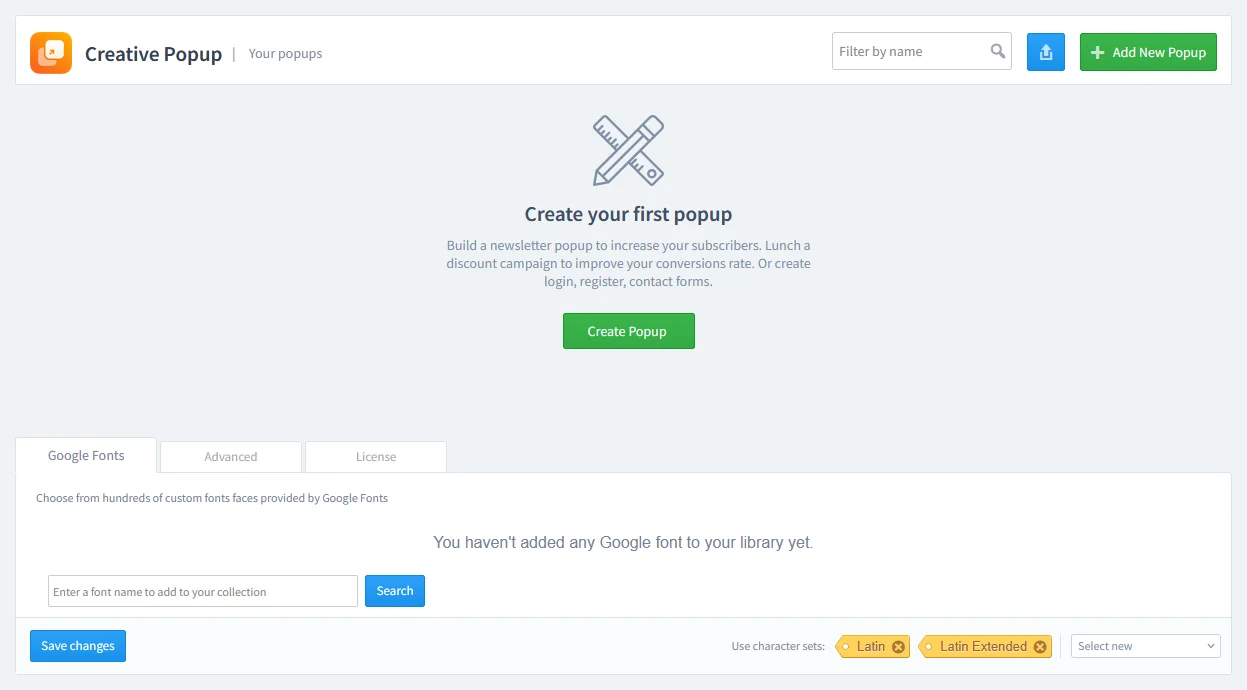
Go to Creative Popup > Popups and create a new popup.

The Creative Popup dashboard in PrestaShop, showing the starting screen to create a new popup campaign.

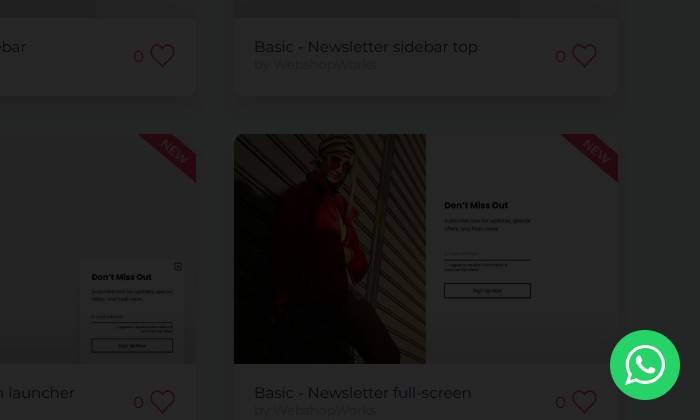
We have pre-made templates specifically for contact forms. Our template library includes pre-made WhatsApp launcher icons that are ready to use.

Step 2: Design your popup

This is the most important step. Here, we'll customize the icon and link it to your phone number.

  • Customize the Icon: In the main editor view, you can change the size, position (typically bottom-right), and appearance of the WhatsApp bubble to match your store's design.
  • Add Your WhatsApp Link:
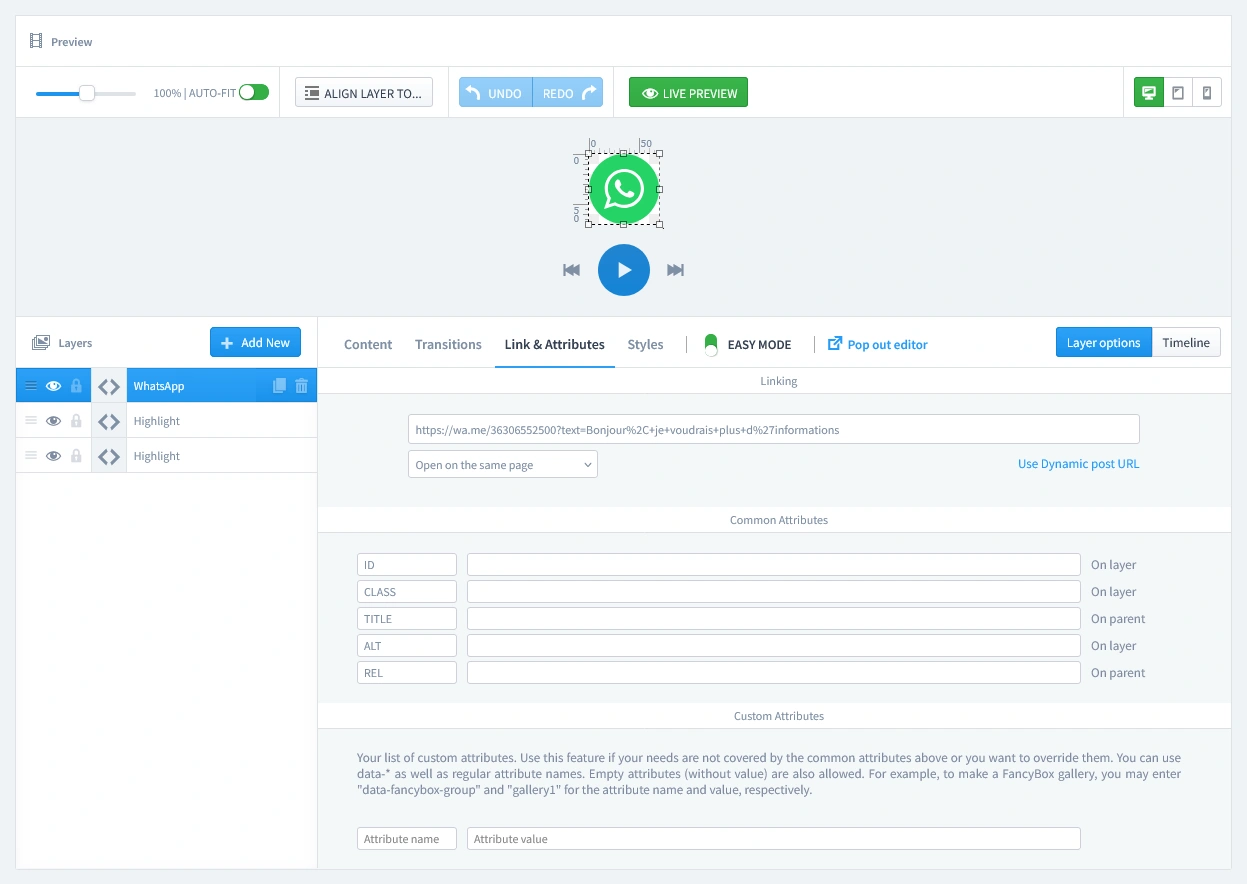
    • Navigate to the Links & Attributes tab in the editor.
    • In the "Linking" URL field, you need to enter your unique WhatsApp chat link. The format is: https://wa.me/YOURPHONENUMBER
    • Replace YOURPHONENUMBER with your full phone number in international format, without any +, leading zeros, brackets, or dashes. For example, a French number like +33 6 12 34 56 78 would be entered as 33612345678.

This link will automatically handle the user experience, opening the WhatsApp app on mobile or giving them the desktop app/web option on computers.

Configuring the link for a PrestaShop WhatsApp popup: showing the 'Links & Attributes' tab where the user enters their wa.me URL to connect the icon to their phone number.
Pro-Tip: Add a Pre-filled Message

You can make it even easier for customers by adding a pre-filled message to your link. Simply add ?text=YOURMESSAGE to the end of the URL. For example:
https://wa.me/33612345678?text=I'd%20like%20more%20information
(Remember to use %20 for spaces).

Step 3: Set Triggers

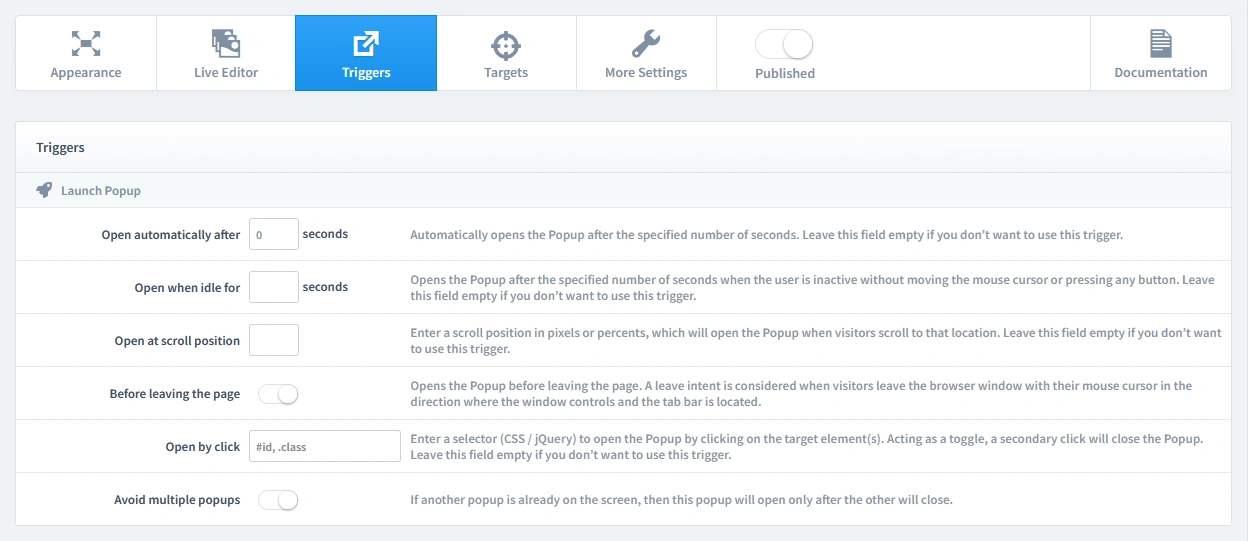
In this step, we'll set the rules for when your popup appears. Let's begin by clicking on the Triggers tab.

1. Launch Popup

For a launcher-style popup, the correct setting is to Open automatically after 0 seconds. This ensures the small, clickable WhatsApp bubble appears instantly on the page without being disruptive.

The 'Triggers' tab in the popup settings, highlighting the 'Open automatically after 0 seconds' option for launching the popup.

2. Repeat Control

This popup should always be available. To achieve this, simply enable the "Repeat Popup" parameter. Leave all other repeat settings disabled.

Configuring the 'Repeat Control' settings to allow the contact form popup to be reopened on demand each time a customer clicks the launcher, with 'Repeat Popup' enabled.

Step 4: Set Targets

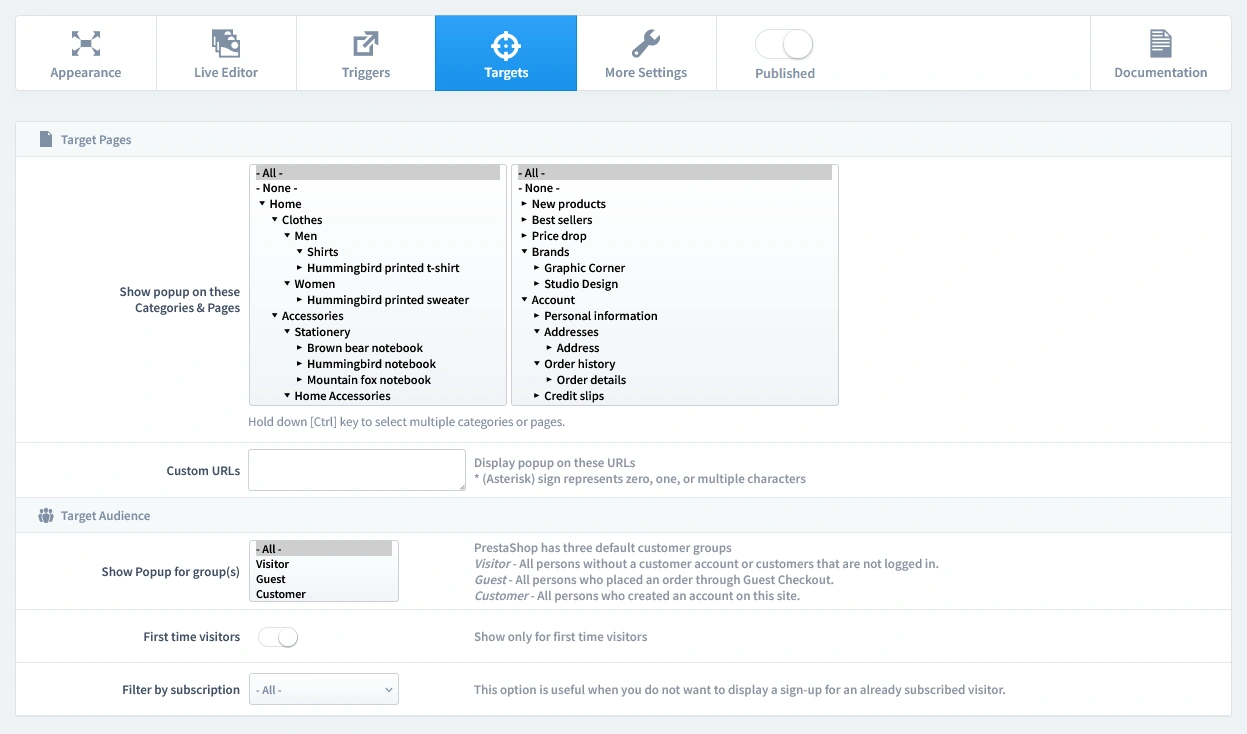
Now that we've set when the popup appears, it's time to define who sees it and on which pages. Let's begin by clicking on the Targets tab.

  • Target Pages: For maximum accessibility, we recommend showing the contact bubble on All Pages. This ensures a customer can ask for help no matter where they are in their shopping journey.
  • Target Audience: This tool is useful for everyone. Set it to show to All visitors.
Configuring the targets for a PrestaShop contact form popup: setting it to display on all pages for all visitors to ensure maximum accessibility.

Step 5: Publish your campaign

Once you're satisfied with your design, triggers, and targets, it's time to go live.

  1. Navigate to the top of the editor and find the "Published" switch.
  2. Click the switch to turn it green.
  3. Make sure to click the Save button in your editor to apply all your changes.
The main settings bar in the Creative Popup editor, with the 'Published' switch toggled on to activate the campaign.

That's it! Your campaign is now live and ready to start boosting conversions on your store.

Don't have the module yet?

Start putting this strategy to work on your PrestaShop store.

Choose a Design and Go Live in Just a Few Clicks

Why start from a blank page? Our template library is packed with professionally designed, conversion-focused layouts ready for your PrestaShop store.

WhatsApp contact
WhatsApp contact

by WebshopWorks

WhatsApp chat
WhatsApp chat

by WebshopWorks

Contact icons
Contact icons

by WebshopWorks

Quick contact
Quick contact

by WebshopWorks

2-in-1 contact us
2-in-1 contact us

by WebshopWorks

Get in touch with us

by WebshopWorks

Contact us
Contact us

by WebshopWorks

Get in touch
Get in touch

by WebshopWorks

Explore More Ways to Engage Visitors